
This is a hands-on follow up to the article Four Rules of Vibe Coding (Without the Chaos).
This guide dives deep to put those principles into practice, specifically in Cursor.
This guide is for developers or tech savvy product managers who want to build production-grade applications. It's designed for those building the first versions of a product or iterating on existing production codebases (alone or in a small team).
This isn't a guide for people who expect to type 3 sentences into a chat box and get a working application without understanding what the AI did for them. If you're serious about building something into production, you need to put in the work. The setup takes time, but it pays off massively in the end.
This guide was written based on:
- 600+ hours of vibe coding
- $3,000+ spent on tokens
- battle tested on several production applications: videosupport.io, craftnow.ai, aqualeads.co
You don't need to implement every recommendation here from day one. Start simple, and refer back to this guide when you hit walls or waste time on repetitive issues.
 We've all been there...
Use these links below to easily jump back to each section along your journey:
⚙️ Part 1: Basic Setup
🏗️ Part 2: Repository Setup
📝 Part 3: Writing Specifications
✂️ Part 4: Task Breakdown
🧩 Part 5: Context Window
🤝 Part 6: Human in The Loop
🧪 Part 7: Testing Gatekeepers
🐛 Part 8: Debugging
👀 Part 9: Code Reviews
📦 Part 10: Version Control
🚀 Part 11: Deployment
🔒 Part 12: Special Audits
⚡ Part 13: Tips and Tricks
📋 Your Cursor Vibe Coding Checklist
A Quick Note
You'll notice this guide has a lot of information and recommendations. It might feel like it kills the vibe, right? All this planning before Cursor writes a single line of code?
Here's the thing: You wouldn't hire a bridge engineer who says "I'll just vibe it."
Imagine asking someone to build a bridge across a river in your city. They show up and say, "I don't have plans, haven't really thought this through, no process, but don't worry, I'm just going to vibe it." You'd never drive on that bridge.
There's a difference between sketching a bridge on paper (which feels easy, almost playful) and building the actual structure that thousands of people will drive across every day. The same applies to code. Prototypes can be vibed. Production applications - the ones real users depend on, the ones that handle payments, store data, and need to work reliably - require intentional planning and a mix of specific skills.
Or maybe you'd prefer this...
📦 Templates
Across this guide, I will reference certain documents or prompts that I use in my setup. You can download all of them here. It contains:
-
Cursor Rules - Pre-configured .cursorrules files that you can drop in your project, including a self-improvement rule template for creating rules that learn from recurring mistakes.
-
Specification Documents - Product requirement templates, user story and acceptance criteria tracking, UX/UI specification sheets and more.
-
Agent Prompts - Prompts for the different agents used across our entire development flow (Product Manager, UX/UI designer, Software Architect, etc.)
Feel free to drop them into your project and refine them over time.
You'll notice those templates come in three formats:
.mdor.mdc- For instructions, prompts, and documentation (LLMs read these best).json- For structured data like configuration and lists (LLMs edit these reliably)
LLMs excel with markdown because it's plain text with clear structure, and JSON because it's predictable and parseable. Use .md files for any text-based instructions you want LLMs to understand, and .json for data that needs to be parsed or sorted. Don't mess around with other formats.
Let's get to it.
⚙️ Part 1: Cursor Basic Setup
The 4 Modes
Cursor has four main modes for different workflows:
-
Ask Mode- Search and understand your codebase without making changes. Perfect for learning how code works before you modify it or get onboarded on a new codebase. -
Agent Mode- The AI autonomously explores, edits multiple files, runs commands, and fixes errors to complete complex tasks. -
Plan Mode- The AI creates structured plans by researching your codebase, asking clarifying questions, and generating a Markdown file with file paths and code references. You can review and edit the plan before building from it. Start planning by pressingShift + Tabin the agent input. -
Debug Mode- Instrument and investigate bugs with runtime evidence before applying fixes.
Cloud Agents (formerly Background Agents) let you run agents asynchronously in a remote environment while you keep coding locally.
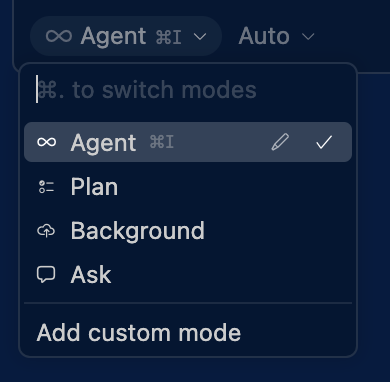
This guide focuses primarily on Agent Mode and the planning workflow.
It's best to use Agent Mode to learn the fundamentals first, effective prompts, workflow patterns, and agent control. Once you're confident with Agent Mode's patterns and limitations, Cloud Agents become a powerful way to parallelize work. But without solid Agent Mode experience, you'll struggle to debug issues or guide the agents effectively. It's like using cruise control before you know how to drive your car.
Agent Tools Overview
Cursor agents have access to several core tools that work together to complete tasks:
Search Tools
Files- Find files based on their names for quick accessDirectory- Display directory contents and understand project structureCodebase- Perform semantic searches to locate relevant code snippets (a huge part of what makes Cursor so powerful)Grep- Execute regex-based text searches across files for specific patternsWeb- Conduct web searches to gather external informationFetch Rules- Retrieve predefined rules or guidelines for consistency (we explain this later)
Edit Tools
Edit & Reapply- Apply specific edits to files and reapply them as neededDelete File- Remove unnecessary or obsolete files from your project
Run Tools
Terminal- Execute terminal commands directly within the IDE
MCP (Model Context Protocol) Tools
Toggle MCP Servers- Manage connections to configured MCP servers for integrations with external services (we will cover that later on in the "Context Window" section)
Key Agent Settings
Cursor has a ton of settings. You will have plenty of time to figure them all out. Here are the few that matter most when getting started.
Auto-Run: You can configure which terminal commands the agent is allowed to run without your manual input while blocking others. Commands that are not in the Allowlist list will require your manual input to be ran. It is a good safety mechanism as terminal commands can be quite destructive.
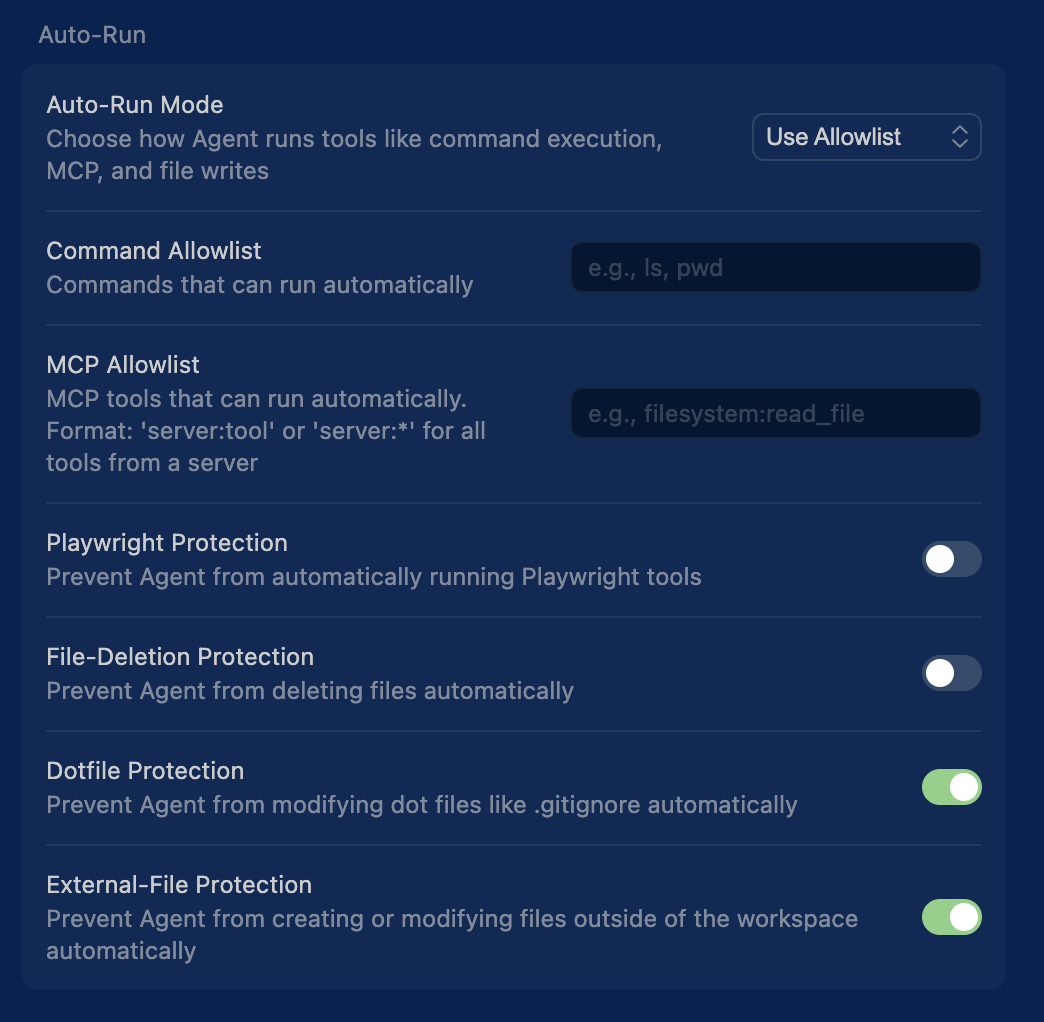 Auto run title
If you're using GitHub for version control (you definitely should), you generally don't need to worry about file deletions. The agent might use rm commands, but you can always recover through version control. If you're still nervous, enable "File Deletion Protection" to get confirmation prompts for those risky file operations (it's usually cumbersome to recover from rm commands on your local machine).
For MCP server access (especially important in corporate environments where data sharing is a sensitive topic), you can use "MCP Tools Protection" to require approval before the agent calls any external services. This gives you full control over data sharing from third-party tools.
Applying Changes: Settings related the agent behavior post edits.

The "auto-fix lints" setting is usually ON by default, but verify it's enabled. The agent will check for lint errors at the end of each task and fix them automatically. It's a life saver. You'd catch these issues when running localhost anyway, but this saves you the headache.
Ignore Files
Cursor uses two types of ignore files to control what the AI can access:
.cursorignore - Completely blocks files from AI access (like .gitignore but for Cursor, it follows the same syntax). Use this for sensitive files such as environment files, credentials or API keys.
.cursorindexingignore - Excludes files from codebase search but still allows AI access. Good for large files that slow down searches such as .log, .cache or assets (images, videos, etc.).
Cursor already includes a pretty solid default list (see here).
It covers:
✅ Security: .env*, credential files, lock files.
✅ Large media: images, videos, audio, archives
✅ Build artifacts: node_modules/, .next/, .nuxt/
✅ Version control: .git/, .svn/, .hg/
✅ Fonts: .ttf, .otf, .woff, .woff2.
This probably covers 95% of the cases.
In the templates I created, you will find my file (in /setup/.cursorignore) that contains an extra scope. You can just copy paste it into your file.
Cursor Rules: Best Practices
Rules in Cursor provide persistent instructions that shape how Agent chat behaves in your project. Think of them as permanent context for coding standards and workflows. Note: User Rules are not applied to Inline Edit (Cmd/Ctrl + K).
Quick Start: If you want high-quality pre-written rules for your tech stack (Next.js, React, Tailwind, Laravel, Django, etc.), check out:
- Cursor Directory - Community-driven collection of cursor rules and prompts across 100+ frameworks and languages.
- Playbooks.com/rules - Battle-tested, production-ready cursor rules curated for specific languages and tasks.
Both provide excellent starting points that you can drop directly into your project and customize for your specific needs.
You will also find my own cursor rules in the templates.
In this guide, we'll focus on three practical rule layers: Project Rules, User Rules, and AGENTS.md. Cursor also supports Team Rules, and legacy .cursorrules is still supported.
1. Project Rules
Project rules live in .cursor/rules and are version-controlled with your codebase. Each rule is a separate .mdc file (MDC = Markdown with metadata) that can be configured to apply in different ways:
- Always - Included in every AI interaction
- Auto Attached - Triggered when specific file patterns (globs) are referenced
- Agent Requested - AI decides when to include them based on the description
- Manual - Only included when explicitly mentioned using
@ruleName
Use project rules for:
- Domain-specific knowledge about your codebase architecture
- Project-specific workflows and templates
- Framework conventions (React patterns, API structure, etc.)
- Code style and naming conventions specific to this project
📁 Click to see example structure
project/
  .cursor/rules/        # Project-wide rules
  backend/
    .cursor/rules/      # Backend-specific rules
  frontend/
    .cursor/rules/      # Frontend-specific rules
You can nest rules in subdirectories, and they'll automatically attach when files in those directories are referenced. This is really powerful because it allows you to reduce the context window whenever the agent is working on different parts of the codebase. It makes sense that testing best practices for instance aren't relevant to your agent when it's editing UI components, but frontend best practices definitely are.
2. User Rules
User rules are global preferences set in Cursor Settings → Rules that apply across all your projects in Agent chat. They're plain text and perfect for personal coding preferences that transcend any single project.
Use user rules for:
- Communication style preferences (concise vs. verbose)
- Personal coding conventions you always follow
- General development principles you apply everywhere
- Language or framework preferences
📝 Click to see example of user rules
Please reply in a concise style. Avoid unnecessary repetition or filler language.

Prioritize code readability over cleverness. Write self-documenting code.

Add inline comments only for complex logic. Avoid obvious comments.

Use meaningful variable and function names. Avoid abbreviations.

Write modular code with single responsibility principle.

Keep functions small and focused. Extract complex logic into helper functions.

Avoid premature optimization. Profile before optimizing.
I provide templates for those rules (used in a Ruby on Rails / React codebase) that you can adapt to your own stack.
3. Agent Instructions (AGENTS.md)
AGENTS.md is a simpler alternative to .cursor/rules for straightforward projects. It's a plain markdown file placed in your project root (or subdirectories) without metadata or complex configurations.
Use AGENTS.md when:
- You want simple, readable instructions without MDC complexity
- Your project doesn't need conditional rule application
- You prefer a single file over multiple rule files
- You're starting fresh and want minimal setup
📝 Click to see example AGENTS.md
Project Instructions
Code Style
- Use TypeScript for all new files
- Prefer functional components in React
- Use snake_case for database columns
Architecture
- Follow the repository pattern
- Keep business logic in service layers
Best Practices for Writing Rules:
✅ Keep rules focused and actionable - Under 500 lines in total
✅ Provide concrete examples - Show, don't just tell
✅ Split large rules - Create multiple composable rules instead of one giant file
✅ Reference files - Link to templates or example code using @filename
✅ Avoid vague guidance - Write like clear internal documentation
✅ Reuse patterns - If you're repeating the same prompt, turn it into a rule
❌ Avoid generic advice - "Write clean code" means nothing and everything.
❌ Don't overload context - Too many rules slow down AI responses
Pro tip: Use the /Generate Cursor Rules command in chat to convert conversations into reusable rules when you've made decisions about agent behavior. This is a good way to compound learnings and avoid getting the same basic errors over and over.
Which Type Should You Use?
- Project Rules - For team-shared, version-controlled coding standards and architecture patterns specific to your codebase
- User Rules - For personal preferences that apply to everything you code across any stack
- AGENTS.md - For simple projects or when you want a single, easy-to-edit instruction file
For more details, see documentation here.
Self-Improving Cursor Rules
Here's the reality: every time you close a chat window or start a new conversation, all the knowledge from that session disappears. Every debugging insight, every fix, every pattern the AI learned... gone.
With a human developer, that knowledge compounds. They remember what went wrong last time and avoid it next time. But Cursor doesn't have that memory unless you give it one. That's where evolving rules come in. That's how you turn Cursor from a junior developer to a senior one over time.
The Rule of Thrice:
Don't rush to create rules after every error. Follow this simple pattern:
- Once → It's a fluke. Just fix it and move on.
- Twice → It's a coincidence. Note it down.
- Thrice → It's a pattern. Create a rule.
When you encounter the same error for the third time, that's your signal to codify the fix into a Cursor rule.
How to do it:
After fixing a recurring error, prompt Cursor:
We've encountered this [specific error] three times now.

Create a cursor rule that:
1. Documents what mistake was being made
2. Provides the correct approach
3. Includes a code example if relevant

Save it to .cursor/rules/[descriptive-name].mdc
Pro tip: I've included a self-improvement rule template in the templates folder (/setup/self-improvement-rule-template.mdc) that provides a structured format for these rules. This is one simple implementation. Some teams build more complex system but it's effective for capturing and preserving knowledge as you code.
Picking Your Model
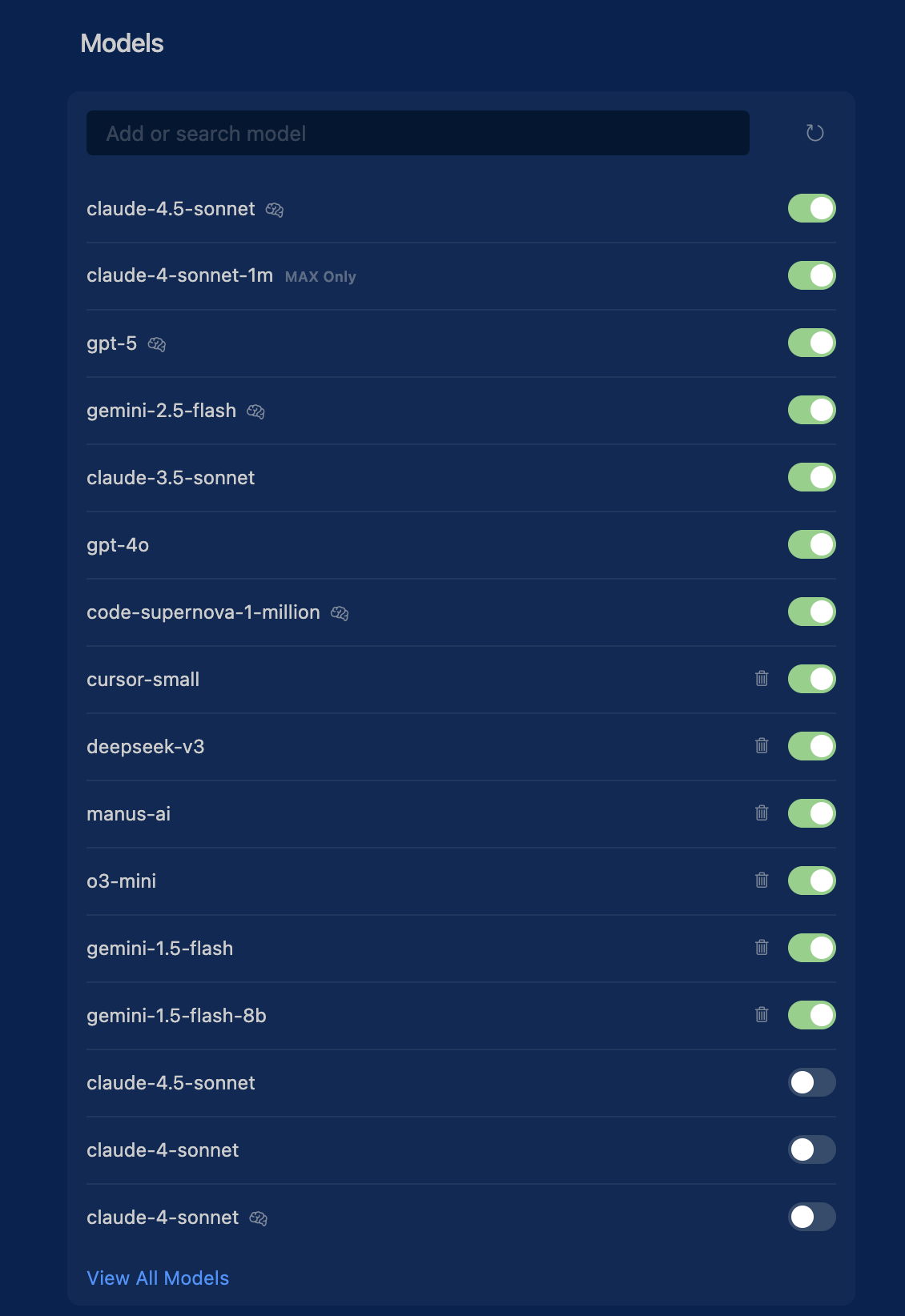 The model selection settings in Cursor
Cursor supports major model providers out of the box. You can pick the model that best fits your task.
Model Selection Guide:
Here has been my experience so far (as of February 2026; this evolves quickly with each new launch):
-
Opus 4.6 - Excellent for code implementation and technical writing. Anthropic models consistently perform best at actual code generation, understanding complex requirements, and producing production-ready implementations.
-
GPT Codex 5.3 - Great for code review and debugging. Strong at analyzing existing code and suggesting improvements.
-
Gemini 3 Pro - Good for planning and problem-solving. Takes initiative and can handle broad refactoring tasks.
-
Grok 4.1 - Particularly strong for writing specifications and requirements. Its truth-seeking nature makes it excellent for the specification phase, asking clarifying questions, and thinking through edge cases systematically.
-
DeepSeek-V3.2 - Strong value/performance option for engineering-heavy tasks and iterative implementation loops.
Auto Mode: with this switched ON, Cursor automatically selects the best model based on your prompt. Perfect for small edits and quick tasks. For complex features or specifications, manually select a model for better control. As far as I can tell,
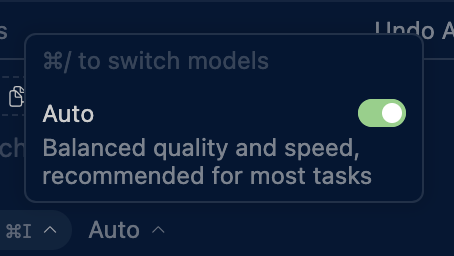
Auto Mode will also help you save money on most small tasks because you don't need a very powerful model for simple edits. The rule of thumb: if the task requires a large context window or looking into many different files, Auto Mode might not be the best choice. But for focused edits like UI changes, method refactoring, or small code modifications in one specific area, Auto Mode works perfectly and keeps costs down.
When to Use Each:
- Small edits/quick fixes → Auto Mode
- Writing specifications → Grok 4.1 (spec phase) or Opus 4.6 (technical specs)
- New feature implementation → Opus 4.6 (best for actual code generation)
- Code review → GPT Codex 5.3 or Opus 4.6
- Complex debugging → Opus 4.6 or GPT Codex 5.3
- Planning and problem-solving → Gemini 3 Pro or Grok 4.1 (for requirement exploration)
You can also use your own API keys for officially supported providers in Cursor settings: OpenAI, Anthropic, Google, Azure OpenAI, and AWS Bedrock. See the official docs here.
Note: Since I'm French (🥖 🐓), I'm also particularly interested in exploring Mistral AI models in my workflow. I'll be writing about how to properly integrate Mistral models with Cursor in a future article.
🏗️ Part 2: Repository Setup
Unlike tools like Lovable or V0 that come with predefined stacks, Cursor gives you complete freedom to choose. You can use any stack you want, but this means you need to make several important decisions upfront.
When setting up your repository, you need to answer these critical questions (I'll use a web application as an example):
Key choices:
- Front-end framework - React, Vue, Svelte, or vanilla JS?
- Back-end framework - Next.js, Express, FastAPI, Django, Ruby on Rails or serverless functions?
- Database choice - PostgreSQL, MySQL, MongoDB, or other NoSQL solutions?
- Backend-as-a-Service (BaaS) - Will you use Supabase (includes auth, storage, database, and more) or build a custom backend? I highly recommend Supabase if you want to skip a lot of headaches in the early days.
- UI library - Tailwind CSS, shadcn/ui, Material-UI, Chakra UI, or custom CSS? (I highly recommend Tailwind CSS + shadcn/ui for rapid development)
- Analytics platform - PostHog, Mixpanel, Amplitude, or database-only tracking? Set this up from day one, you can't analyze what you don't track.
If not using a BaaS:
- Authentication system - Auth0, Firebase Auth, Clerk, or custom JWT implementation?
- Storage solution - AWS S3, Cloudinary, UploadThing, or self-hosted storage?
- File handling - How will you manage file uploads, transformations, and media delivery?
Development Setup:
- Testing frameworks - Jest, Vitest, Playwright, or Cypress for frontend/backend testing?
- Package manager - npm, pnpm, or yarn? (if using a Node backend)
- ORM/Database toolkit - Prisma, TypeORM, Drizzle, Sequelize, or raw SQL?
- Deployment strategy - Vercel, Netlify, Railway, AWS, or self-hosted infrastructure?
- Environment management - How will you handle dev/staging/production configurations?
- CI/CD pipeline - GitHub Actions, GitLab CI, CircleCI, or other automation?
Pro Tip: The LLM can help you think through all these questions and make informed decisions based on your project requirements, constraints, and long-term goals. Don't hesitate to ask for recommendations and tradeoffs between different options.
⚠️ Don't Skip Analytics
Analytics might feel premature when you're just starting, but here's the reality: the whole point of shipping features is to learn from real user behavior. If analytics is an afterthought, your ability to make data-driven decisions becomes an afterthought too. By the time you realize you need to track something, you've already lost weeks or months of valuable data.
Two Recommended Stacks:
In the end, the best stack is the one you master. If you don't have much experience with any stack, below are two stacks that I've been playing around with and got good results:
-
Modern Startup Stack: Next.js + React + Supabase
- Tons of features out-of-the-box from Supabase (auth, database, storage, real-time)
- Just make API calls, no backend complexity
- Popular choice for new projects and startups
- Great TypeScript support and modern tooling
- Easy deployment with Vercel integration
-
Old School Meets New School: Ruby on Rails + React with Inertia.js
- No API layer needed, Inertia.js handles the bridge between Rails and React
- Rails comes "batteries included" with sensible defaults
- "Convention over configuration" nature of Rails means fewer technical choices to be made by the LLM
- LLMs converge faster on solutions due to Rails conventions
- Decades of training data for both Rails and React
- Ruby is clean and token-efficient for LLMs
- React gives you modern frontend capabilities that Rails lacks
- Ruby on Rails continues to position itself as the "One Person Framework"
Pro tip: Once you've completed your repository setup, save it as a GitHub template repository. You don't want to repeat this work for every new project.
📝 Part 3: Writing Specifications
Alright, Cursor is setup, your repository is setup. Now the real work starts.
This is where you MUST engage in a questioning process with the LLM before any code is written. This is also where many of the insights transcend Cursor specifically, much of what follows applies to any AI coding tool.
Stop. Think. Then Build.
Just like good engineers pause to think before writing code, you should intentionally refrain from writing any code during this specification phase. Complex features always start with a good plain English description of what you're trying to accomplish. This specification process can take a bit of time and feel overkill but it's critical. You'll save countless hours down the line. I promise.
Intent is the Source of Truth
In lazy vibe coding, code becomes the source of truth. You iterate directly on code with the AI, tweaking and adjusting until something works, without clear intent documented anywhere. This is exactly what we want to avoid. Instead, intent should be your source of truth. Your specification determines what gets built. The code is generated from that intent, not the other way around. This is the core principle behind spec-driven development, where specifications become executable. The AI reads your intent and produces working code. When specifications are clear, you can iterate on implementations, try different technical approaches, or regenerate solutions without rewriting your requirements. The spec stays stable; the "how" can vary.
Why Vague Prompts Fail
Here's the reality: LLMs are exceptional at pattern completion, but not at mind reading. When you give a vague prompt like "add task assignment to my app," the AI has to guess at potentially thousands of unstated requirements. How do users select assignees? What permissions exist? Should there be notifications? What happens during reassignment? Every vague requirement multiplies possible interpretations exponentially. The AI will make some reasonable assumptions, and many will inevitably be wrong. You won't discover which ones until deep into implementation. Clear specifications reduce the solution space from thousands of possibilities to one clear path. That's why we specify first, then build.
The Specification Spectrum: Finding the Right Balance
Here's what I've learned: there's a spectrum between lazy prompting and full-blown specification documents. On one end, you have "build me a feature" with zero context—the AI fills in too many blanks with assumptions that don't match your needs. On the other end, you have complete Agile documentation with user stories, personas, epics, acceptance criteria for everything, and exhaustive data models that bloat your context window and cause "context rot."
Neither extreme works well with LLMs.
The sweet spot is somewhere in between: define sufficiently to provide the context required for the LLM, but not so much that you overwhelm it with irrelevant information. LLMs don't need to know about personas or business alignment the way human teams do. They need enough context to write good code, but not so much ceremony that the important details get lost in the noise.
Three methodologies have influenced my thinking here:
1. Linear's Approach - The issue tracking tool doesn't believe in user stories. They advocate for simply defining what you're building without the ceremony. Direct, clear, focused.
2. Jobs To Be Done (JTBD) - This framework emphasizes job stories over user stories. Job stories focus on what the feature does rather than who it's for. Knowing "who" it's for is a business question that helps humans align, but it's not necessarily relevant for writing good code.
3. Shape Up - From 37signals (creators of Basecamp and Ruby on Rails), this methodology introduces concepts like "no-gos" (explicit boundaries) and "rabbit holes" (risks to avoid). It's just as important to tell the LLM what NOT to do as it is to tell it what to do.
Two Ways LLMs Go Off the Rails:
-
They build functionalities you never asked for - Based on training data, they assume certain features should exist a certain way. If you're building a todo app, they might add categories, priorities, and due dates even if you just wanted a simple list.
-
They over-engineer the implementation - They reach for complex patterns, add unnecessary abstractions, or build elaborate systems when a simple solution would work.
The way to prevent this is with explicit no-gos and rabbit holes. Create guardrails by being clear about what you don't want: "Don't add authentication," "Don't create a separate API layer," "Keep the data model simple with just a single table."
Requirement Subtraction: Question Everything
Before diving into the workflow, I've found Elon Musk's first principle of engineering quite useful here: Make the requirements less dumb.
He famously said...
The requirements are definitely dumb; it does not matter who gave them to you. It's particularly dangerous if a smart person gave you the requirements, because you might not question them enough.
— Elon Musk —
His rule: If you're not occasionally adding things back in, you're not deleting enough.
(You can find the short video here)
When working with AI on specifications:
✅ Question every requirement - Does this feature actually solve the user's problem, or is it just "nice to have"?
✅ Kill scope aggressively - Remove features that don't directly serve your core value proposition
✅ Default to "no" - Every feature you add is code you must maintain, test, and debug
✅ Remove first, optimize later - Deletion is always faster and safer than building
Pro tip: During the Product Manager phase (covered below), explicitly ask: "What can we remove from this feature while still solving the core problem?". The best code is the code you never write. The best feature is the one you don't build because you found a simpler solution.
The Squad Approach
Instead of throwing vague feature requests at the AI and hoping for the best, we're going to use a structured, multi-agent workflow. Think of it as assembling a specialized team (similar to a squad in startups) where each AI agent plays a specific role:
- 📋 Product Manager
- 🎨 UX/UI Designer
- 🏗️ Software Architect
Squads are essentially small navy seal teams of domain experts that come together to ship features fast. That's exactly what you want with your vibe coding setup.
Each agent asks targeted questions in their domain, builds on the previous agent's work, and produces specific deliverables. By the end of this process, you'll have comprehensive specifications that any developer (human or AI) can implement with confidence.
Quick Start with Cursor Plan Mode
Before diving into the comprehensive workflow below, it's worth mentioning that Cursor recently shipped Plan Mode, which provides a lightweight alternative to the detailed specification process outlined in this guide.
Plan Mode (activated by pressing Shift + Tab in the agent input) will:
- Research your codebase to find relevant files
- Ask clarifying questions about your requirements
- Generate a Markdown plan with file paths and code references
- Allow you to edit the plan before building
When to Use Plan Mode vs. The Full Workflow:
Plan Mode is a good starting point if you want to move fast without investing much time in planning. However, it has limitations compared to the comprehensive approach I recommend:
- Limited questioning scope - Usually asks 4-5 questions instead of the more thorough exploration needed for complex features
- Mixed concerns - Combines behavioral and technical questions without separating UX/UI considerations
- Assumes more - Doesn't go through design details, technical choices, or non-functional requirements systematically
- No specialized expertise - Uses a single general agent rather than domain-specific Product Manager, UX/UI Designer, and Software Architect perspectives
Think of Plan Mode as a very lightweight version of the workflow below. For simple features or when you're just experimenting, Plan Mode works well. For complex features where quality, maintainability, and meeting precise requirements matter, I believe the workflow suggested below works best.
My recommendation: If you're new to vibe coding or working on a complex feature, start with Plan Mode to test the waters and get a feel for the questioning process. Then, when you're ready for higher quality specifications, adopt the comprehensive workflow below.
The Three-Agent Workflow
The specification process I recommend uses 3 specialized agents working sequentially:
- 📋 Product Manager - Defines WHAT to build and WHY
- 🎨 UX/UI Designer - Defines HOW users interact with it
- 🏗️ Software Architect - Defines HOW to build it technically
Each agent produces specific deliverables that the next agent builds upon.
Note: you are free to design your own workflow for your own needs. This 3 agent workflow simply follows how most squads tend to work within startups that ship fast.
Pro tip: Store your agent prompts (Product Manager, UX/UI Designer, Software Architect) as Cursor Commands in .cursor/commands/ (e.g., /pm, /ux, /architect). This lets you trigger each agent with / syntax instead of copy-pasting prompts every time.
Complete Workflow Overview
Before we dive into the details of each agent, here's how the entire process flows:
Feature Request
     ↓
┌───────────────-─────────┐
│  📋 Product Manager     │
│  ────────────────────   │
│  • Ask strategic Qs     │
│  • Generate PRD         │
│  • Write job stories    │
│  • Define no-gos        │
│  • Identify rabbit holes│
│  • Edge case criteria   │
└──────────────-──────────┘
     ↓
┌────────────────────────┐
│  🎨 UX/UI Designer     │
│  ────────────────────  │
│  • Ask interaction Qs  │
│  • Breadboard flows    │
│  • Screen inventory    │
│  • ASCII wireframes    │
└────────────────────────┘
     ↓
┌────────────────────────┐
│  🏗️ Architect          │
│  ────────────────────  │
│  • Ask technical Qs    │
│  • Architecture spec   │
│  • Technology choices  │
│  • Implementation risks│
└────────────────────────┘
     ↓
Complete Specification
The Process:
-
📋 Product Manager asks strategic questions about business requirements, feature behavior, and edge cases. Then generates a Product Requirements Document (PRD) with job stories (not user stories), no-gos, rabbit holes, and acceptance criteria only for critical edge cases.
-
🎨 UX/UI Designer asks questions about user interactions, creates breadboards to map out flows at the right level of abstraction, builds a screen inventory (what to add/edit/delete), and produces ASCII wireframes when visual detail is needed.
-
🏗️ Software Architect asks technical questions about non-functional requirements, technical constraints, performance, security, and infrastructure. Creates a comprehensive architecture specification with technology recommendations and identifies implementation risks.
File Structure:
I recommend creating a specifications folder at the root of your project. This folder will contain all your prompts for all your agents (inside a agents folder, unless you use Cursor's commands) as well as all the outputs of your specs inside a features folder.
You can find an example of such folder (as I use it in my workflow) in the templates I provide [here].(#templates)
Here's a suggested structure you can adapt based on your preferences:
specifications/
├── agents/                          # Agent prompts (if not using Cursor commands)
│   ├── product_manager.md
│   ├── ux_designer.md
│   └── architect.md
│
└── features/
    └── task-assignment/                      # One folder per feature
        ├── product_requirements_document.md  # Product specs (job stories, no-gos, rabbit holes, edge cases)
        ├── design_document.md                # Design specs (breadboards, screen inventory, flows)
        ├── architecture_document.md          # Technical specs (architecture, tech choices, risks)
        │
        ├── pm/
        │   └── pm_questions.json
        │
        ├── designer/
        │   ├── designer_questions.json
        │   └── wireframes/                   # ASCII wireframes (when needed)
        │       ├── task-list.txt
        │       └── assign-modal.txt
        │
        └── architect/
            └── architect_questions.json
Key Points:
- Each feature gets its own folder
- Three main documents: PRD (product), Design Doc (UX/UI), Architecture Doc (technical)
- Questions generated by LLMs and answered by the human (you) are saved as JSONs for reference
- Wireframes are separate files only when visual detail is needed
- All files are text-based (Markdown/JSON) for easy version control and LLM parsing
Phase 1: Product Manager
The Product Manager (PM) agent's job is to understand the what and why of the feature from a product perspective. This agent asks strategic questions about business requirements, user needs, and edge cases.
Step 1: Initial Questions
The PM starts by asking questions to understand:
- Core problem: What problem are we solving?
- Appetite: How much time is this worth? (Borrowed from Shape Up - sets time constraints upfront)
- Job to be done: What is the user trying to accomplish?
- Scope boundaries: What's in scope and what's explicitly out?
- Edge cases: What unusual scenarios need handling?
- Success criteria: How do we know this worked?
Example questions the PM might ask:
1. What problem does task assignment solve for your users?
2. How much time is this feature worth? (Small batch: 1-2 weeks, Big batch: 6 weeks)
3. When would a user need to assign a task to someone?
4. Can a task be assigned to multiple people?
5. What happens if you assign a task to someone who doesn't have access?
6. Should there be notifications when tasks are assigned/reassigned?
7. Can users reassign tasks, or only the original assignor?
8. What's explicitly NOT part of this feature? (e.g., no task ownership transfer, no delegation chains)
These questions force you to think through the feature systematically. The PM captures your answers and uses them to generate the specification.
Step 2: Generate Job Stories (Not User Stories)
Instead of traditional user stories with personas ("As a project manager, I want to..."), the PM generates job stories that focus on the situation, motivation, and outcome:
Format: When [situation], I want to [motivation], so I can [expected outcome].
Why job stories over user stories?
- They focus on what the feature does, not who it's for
- LLMs don't need personas or business context that's relevant for human alignment
- They're more direct and concrete for AI implementation
- Companies like Intercom and Basecamp successfully use this approach
Example job stories in the PRD:
Job Stories
JS-001: Assign task to team member
When I'm looking at a task that needs someone else to handle it I want to assign it to a team member So I can ensure they know it's their responsibility and I can track who's working on what
JS-002: Notification on assignment
When I assign a task to someone I want to them to receive a notification So they're immediately aware of their new responsibility
JS-003: View my assigned tasks
When I'm viewing my task list I want to see which tasks are assigned to me So I can know what I'm responsible for completing
These job stories drive the implementation without the ceremony of full user stories with acceptance criteria for every single interaction.
Step 3: Define No-Gos and Rabbit Holes
This is critical and often overlooked. The PM explicitly documents:
No-Gos: Features or functionality we're intentionally NOT building to fit the appetite and stay focused.
Rabbit Holes: Risks and implementation traps that could derail the project or cause over-engineering.
Example no-gos:
No-Gos
These are explicitly out of scope:
- No task ownership transfer (assigning doesn't transfer creation rights)
- No delegation chains (can't assign a task that's already assigned to you)
- No batch assignment (assign multiple tasks at once)
- No assignment history/audit log
- No "assign to team" (only to individuals)
Example rabbit holes:
Rabbit Holes
Watch out for these implementation traps:
-
Permission system complexity - Don't build a complex role-based permission system. Keep it simple: if you can see a task, you can assign it. More granular permissions are a v2 feature.
-
Real-time synchronization - Don't add websockets or real-time updates. Standard HTTP polling or page refresh is fine for v1.
-
Notification preferences - Don't build a notification preference system (email vs in-app vs both). Everyone gets email notifications, period. Preferences come later.
-
Assignment workflows - Don't create multi-step assignment workflows (request → approve → assign). Direct assignment only.
-
Data model over-engineering - Don't create separate tables for assignments, assigners, assignment history. Just add an
assigned_tofield to the tasks table.
By explicitly stating these boundaries and risks, you prevent the LLM from going down paths that waste time or add unnecessary complexity.
Step 4: Acceptance Criteria (Only for Critical Edge Cases)
Unlike traditional Agile where you write acceptance criteria for everything, we only document criteria for critical, non-obvious edge cases that could cause problems if implemented wrong.
These are typically:
- Payment/billing logic
- Security flows
- Data integrity issues
- Complex state transitions
When to write acceptance criteria:
- ✅ Does failure cost money? (payments, billing, refunds)
- ✅ Does failure lock someone out? (authentication, authorization)
- ✅ Does failure lose data? (exports, backups, critical writes)
- ✅ Does failure break integrations? (API calls, webhooks)
- ❌ Simple UI interactions (these don't need criteria)
Example acceptance criteria using Given/When/Then (Gherkin syntax):
Scenario: Cannot assign task to user outside project
  Given I have a task in "Project Alpha"
  And user "john@example.com" is not a member of "Project Alpha"
  When I attempt to assign the task to "john@example.com"
  Then the assignment fails
  And I see an error: "Cannot assign to users outside this project"
  And the task remains unassigned

Scenario: Reassignment notifies new assignee only
  Given task #123 is assigned to "alice@example.com"
  When I reassign task #123 to "bob@example.com"
  Then "bob@example.com" receives an assignment notification
  And "alice@example.com" receives a notification that task was reassigned
  And the previous assignee "alice@example.com" is recorded in the task
These acceptance criteria translate directly into test cases, which is why we use Given/When/Then format (it maps to Behavior Driven Development and the Gherkin language).
Deliverables:
pm_questions.json- Questions and your answers (saved in pm/ folder)product_requirements_document.md- Contains problem statement, appetite, job stories, no-gos, rabbit holes, and edge case acceptance criteria (in feature root folder)
Phase 2: UX/UI Designer
The Designer agent focuses on the how of user interaction. This agent asks questions about screens, flows, and interactions, then creates breadboards and wireframes.
Step 1: Designer Questions
The designer asks questions to understand:
- User flows: How do users move through this feature?
- Screen modifications: What existing screens need changes?
- New screens: What needs to be built from scratch?
- Interactions: What can users do on each screen?
- States: What different states does the UI have? (loading, error, success, empty)
Example questions:
1. Where in the existing UI does task assignment happen?
2. Is assignment inline on the task list, or in a modal/separate page?
3. How does the user select who to assign to? (dropdown, autocomplete, modal with search?)
4. Should assigned tasks look visually different from unassigned ones?
5. Where do users see tasks assigned to them?
6. What happens visually when assignment succeeds? (toast notification, visual update?)
7. How are assignment errors displayed to the user?
Step 2: Breadboarding (Shape Up Technique)
Before diving into visual details, use breadboarding borrowed from electrical engineering. An electrical breadboard has all the components and wiring of a real device but no industrial design. Similarly, sketch out your interface with words first, not pictures.
A software breadboard has three key components:
- Places - Locations users navigate to (screens, dialogs, modals, menus)
- Affordances - Things users can interact with (buttons, fields, links, dropdowns)
- Connection lines - How affordances move users between places
Why breadboard first?
- Stays at the right level of abstraction (concrete but not detailed)
- Prevents premature design decisions
- Lets you think about logic and flow without visual distractions
- Gives the LLM clear structure without over-constraining design choices
Example breadboard in the design document:
Task Assignment Flow - Breadboard
[Task List Page]
- Each task shows:
- Task title
- Current assignee (if any)
- "Assign" button
- "Assign" button → [Assignment Modal]
[Assignment Modal]
- User search/select dropdown
- Current assignee display (if exists)
- "Assign" button → [Task List Page] (with success toast)
- "Cancel" link → [Task List Page]
[Task List Page - After Assignment]
- Shows success toast: "Task assigned to [name]"
- Updated task shows new assignee
- Auto-dismisses after 3 seconds
[Error States]
- Invalid user → Show error in modal: "User not found"
- Permission denied → Show error in modal: "You don't have permission to assign"
- Network failure → Show error in modal: "Assignment failed. Try again."
This breadboard captures the complete flow without making decisions about colors, exact positioning, typography, or detailed layouts. The LLM understands what needs to exist and how it connects.
Step 3: Screen Inventory
Create an inventory of what screens/components need to be created, modified, or deleted:
Example screen inventory in the design document:
Screen Inventory
New Screens
Assignment Modal
- Modal dialog for assigning tasks to team members
- Wireframe:
wireframes/assignment-modal.txt
Modified Screens
Task List Page
- Changes: Add 'Assign' button to each task, display current assignee
- Wireframe:
wireframes/task-list-updated.txt
Task Detail Page
- Changes: Show assignee info, add inline assign/reassign option
- Wireframe:
wireframes/task-detail-updated.txt
Deleted Screens
None
Step 4: ASCII Wireframes (When Needed)
After breadboarding, if you need to get more specific about layouts, create ASCII wireframes. These are text-based layouts that:
- LLMs can easily parse and reference
- Use fewer tokens than visual formats
- Let you iterate in seconds
- Provide just enough visual detail without over-constraining
Use ASCII wireframes for screens where layout matters, but skip them when the breadboard is clear enough.
This aligns with the "fat marker sketch" concept from Shape Up: broad enough that adding excessive detail is difficult.
Example ASCII wireframe:
┌─────────────────────────────────────────────┐
│  [X]                Task Assignment         │
│                                             │
│  Assign task: "Fix login bug"               │
│  ─────────────────────────────              │
│                                             │
│  Currently assigned to: Alice Johnson       │
│                                             │
│  Assign to:                                 │
│  ┌─────────────────────────────────────┐    │
│  │ Bob Smith ▼                         │    │
│  └─────────────────────────────────────┘    │
│                                             │
│  Recent assignees:                          │
│  • Bob Smith                                │
│  • Carol White                              │
│  • David Lee                                │
│                                             │
│  [Assign Task]  [Cancel]                    │
│                                             │
└─────────────────────────────────────────────┘
Pro tip: Only create wireframes when layout decisions actually matter. Don't wireframe every single screen—trust the breadboards for simple screens and only add visual detail where it's critical to understanding.
Deliverables:
designer_questions.json- Questions and answers (saved in designer/ folder)design_document.md- Contains breadboards, screen inventory, and references to wireframes (in feature root folder)- ASCII wireframes in
wireframes/folder (only when visual detail is needed)
Phase 3: Software Architect
The Architect agent focuses on the how of technical implementation. This agent asks questions about architecture, technology choices, and non-functional requirements.
Step 1: Technical Questions
The architect asks questions to understand:
- Data model: What tables/collections/entities are needed?
- API design: What endpoints are required?
- Performance: Are there scalability concerns?
- Security: What security considerations exist?
- Integration: How does this interact with existing systems?
- Non-functional requirements: Reliability, monitoring, error handling
Example questions:
1. Where should assignment data be stored? (Add field to tasks table or separate assignments table?)
2. Should we support assigning tasks to deleted/inactive users?
3. What's the expected assignment volume? (impacts whether we need optimization)
4. Should assignment be idempotent? (can you assign the same person twice?)
5. How should we handle notifications? (synchronous or async queue?)
6. Do we need to track assignment history for analytics?
7. What existing authentication/authorization system should we integrate with?
8. Should the API support batch assignments for future use?
Step 2: Architecture Specification
The architect creates a comprehensive specification covering:
Data Model:
Data Model Changes
tasks table (modify)
Add columns:
assigned_to(uuid, nullable, foreign key to users.id)assigned_at(timestamp, nullable)assigned_by(uuid, nullable, foreign key to users.id)
Indexes:
idx_tasks_assigned_toon assigned_to (for filtering user's tasks)idx_tasks_assigned_aton assigned_at (for sorting by assignment date)
No separate assignments table needed for v1. Keep it simple.
API Endpoints:
API Endpoints
POST /api/tasks/:id/assign
Assigns a task to a user.
Request: { "assigned_to": "user-uuid" }
Response (200 OK): { "task_id": "task-uuid", "assigned_to": "user-uuid", "assigned_at": "2024-01-15T10:30:00Z" }
Errors:
- 404: Task not found
- 403: User doesn't have permission to assign
- 400: Assigned user not in project
Technology Choices in the architecture document:
The architect presents options for key technical decisions in simple markdown format:
Technology Choices
Email Notifications
We need to send email notifications when tasks are assigned.
Option 1: SendGrid (Recommended) ✓
- ✅ Easy setup with good documentation
- ✅ Generous free tier (100 emails/day)
- ✅ Good deliverability rates
- ✅ Simple API
- ❌ Can be expensive at scale ($15/month for 40k emails)
- Decision: Good enough for v1. We can switch later if needed.
Option 2: AWS SES
- ✅ Very cheap ($0.10 per 1,000 emails)
- ✅ Scales infinitely
- ✅ Integrates with existing AWS infrastructure
- ❌ More complex setup (domain verification, DKIM, etc.)
- ❌ Requires dealing with AWS console complexity
- Decision: Skip for v1. Not worth the setup time.
Option 3: Postmark
- ✅ Great deliverability
- ✅ Clean API
- ❌ More expensive than SendGrid
- ❌ Smaller free tier
- Decision: Not needed. SendGrid is sufficient.
Final choice: Start with SendGrid. It's simple, well-documented, and we can always migrate to SES if email volume becomes expensive.
Notification Delivery
How should we send notifications?
Option 1: Synchronous (Recommended for v1) ✓
- ✅ Simple implementation
- ✅ Immediate feedback if email fails
- ✅ No queue infrastructure needed
- ❌ Slightly slower API response (adds ~200ms)
- ❌ Won't scale to thousands of notifications
- Decision: Good enough for v1. Most assignment operations are infrequent.
Option 2: Background Queue (Redis/BullMQ)
- ✅ Fast API response
- ✅ Handles bursts better
- ✅ Can retry failures
- ❌ Adds infrastructure complexity (Redis, worker processes)
- ❌ Harder to debug
- ❌ Overkill for current volume
- Decision: Wait until we actually need it. Don't over-engineer.
Final choice: Synchronous for v1. Send emails directly in the API handler. If response times become a problem, we'll add a queue in v2.
The important technical choices usually fall into two categories:
- Libraries/SDKs - Services you will install on your codebase (e.g.,
@sendgrid/mail,axios) - Third-party APIs - HTTP endpoints you call directly (e.g. Stripe API, Supabase REST API)
Pro tip: Use Reddit & Hacker News as Your BS Detectors
When the AI suggests libraries or tools, validate them on Reddit or Hacker News before committing:
Search: [tool name] reddit or [tool name] hacker news or [tool name] vs [alternative] reddit
Why these platforms? Anonymity breeds honesty. Developers on Reddit and Hacker News will tell you the unvarnished truth, the hidden gotchas, maintenance issues, and better alternatives. If a library has been abandoned for 2 years or has terrible developer experience, these communities will let you know. The AI might suggest something that technically works but is practically unusable.
PS: Avoid LinkedIn for technical validation. It's the worst place to search for honest tool reviews, everyone's polishing their professional image, promoting their company's tools, or building their personal brand. You won't find the brutal truth there.
Quick validation questions to check:
- Is this tool actively maintained?
- Does it involve trade-offs we are willing to accept?
- Does it lack certain functionalities?
- What are the costs associated with that library or API?
Step 3: Implementation Risks
The architect identifies technical rabbit holes and implementation risks:
Implementation Risks
1. Race conditions on concurrent assignments
- Risk: Two users assign the same task simultaneously
- Mitigation: Use database-level locking or last-write-wins (simpler for v1)
- Decision: Last-write-wins is fine. Concurrent assignment is rare.
2. Email delivery failures
- Risk: Email fails but API returns success
- Mitigation: Wrap email sending in try-catch, log failures
- Decision: Log email failures but don't block assignment. User still sees success in UI.
3. N+1 queries when loading task lists
- Risk: Fetching assignee data for each task separately
- Mitigation: Use JOIN or eager loading to fetch assignees in one query
- Decision: Must implement from the start. This is easy to get right now.
Deliverables:
architect_questions.json- Technical questions and answers (saved in architect/ folder)architecture_document.md- Contains architecture spec, technology choices, and implementation risks (in feature root folder)
🔄 Using Specifications with Cursor
Once you have these specifications, implementation in Cursor becomes straightforward. You have three main documents that serve as your source of truth:
- product_requirements_document.md - Product specs (what and why)
- design_document.md - Design specs (how users interact)
- architecture_document.md - Technical specs (how to build)
-
Load the context: Add relevant spec files to your Cursor chat using
@filename- Include the PRD for understanding the feature requirements
- Include the design document for UI/UX work
- Include the architecture document for technical implementation
-
Reference specific sections: Point Cursor to exact requirements
@architecture_document.md Implement the task assignment endpoint according to the specifications in the "API Endpoints" section -
Use acceptance criteria for testing:
@product_requirements_document.md Create tests for the edge cases defined in the "Acceptance Criteria" section -
Keep specs updated: As you discover edge cases during implementation, update the relevant document
- New edge cases → Update PRD
- UI changes → Update design document
- Tech stack changes → Update architecture document
Note on Context Engineering: These specification documents become a core part of your context engineering strategy (covered in Part 5). By referencing them with @filename during implementation, you provide the AI with clear, structured intent rather than relying on conversation history alone. This ensures the AI has the right context at the right time, making implementations more accurate and reducing back-and-forth.
Key Benefits of This Approach
Clarity: Everyone (human and AI) knows exactly what to build
Completeness: All three perspectives (business logic, UX/UI, technical architecture) are covered
Traceability: Every implementation decision traces back to a specification
Reusability: Specs become documentation and onboarding material
Faster Implementation: Less back-and-forth during coding because requirements are clear
Better Testing: Acceptance criteria for edge cases map directly to test cases
Scope Control: No-gos and rabbit holes prevent feature creep and over-engineering
When to Use This Workflow
This comprehensive three-agent workflow works best when working on complex features.
For quick UI edits or small improvements on existing features, you probably don't need this full process, it's likely overkill. Use default vibe coding or Cursor's Plan Mode instead.
The key is finding the right balance on the specification spectrum for your specific feature. Simple feature? Lighter specs. Complex feature with many edge cases? Full workflow.
Templates and Prompts
All the agent prompts, templates, and examples are available in the templates you can download here. The folder structure is organized as follows:
Main Agent Prompts (/agent_prompts/):
- Product Manager prompt (updated with job stories, no-gos, rabbit holes)
- UX/UI Designer prompt (with breadboarding and screen inventory concepts)
- Software Architect prompt (with technology choices and implementation risks)
- Tech Lead prompt (for task breakdown)
Specialized Prompts (/special_prompts/):
- Debugging agent prompt (for complex debugging scenarios)
- UX/UI expert prompt (for specialized design assistance)
Example Feature (/features_example/001-collaborative-task-assignment/):
- Complete three-agent workflow example
- Organized by role:
pm/,ux/,architect/,tasks/ - Product Requirements Document, Design Document, Architecture Document
- ASCII wireframe examples
- Task breakdown example
Drop these into your project and feel free to customize them for your specific needs.
Next up: Now that you have comprehensive specifications, Part 4 covers how to break them down into manageable implementation tasks. It is the last step before we can actually start writing code!
✂️ Part 4: Task Breakdown
This is a critical step you should not skip. If you've done all that hard work specifying your feature, it would be a shame to mess it up during the implementation phase.
The Problem with One-Shot Development
When you've written comprehensive specifications (like we did in Parts 3), you're dealing with complex features that shouldn't be built all at once. Asking an AI to implement everything in one go is like building your dream house and having the foundation crew, painters, and roofers all working on the same site simultaneously. It's chaotic and counterproductive. You need to build the foundation first, then the walls, then the roof, and so on.
The Tech Lead's role here is to transform our detailed specifications into bite-sized, actionable tasks that can be validated at each step by you, the human.
Two Approaches: TaskMaster vs Custom System
Option 1: TaskMaster
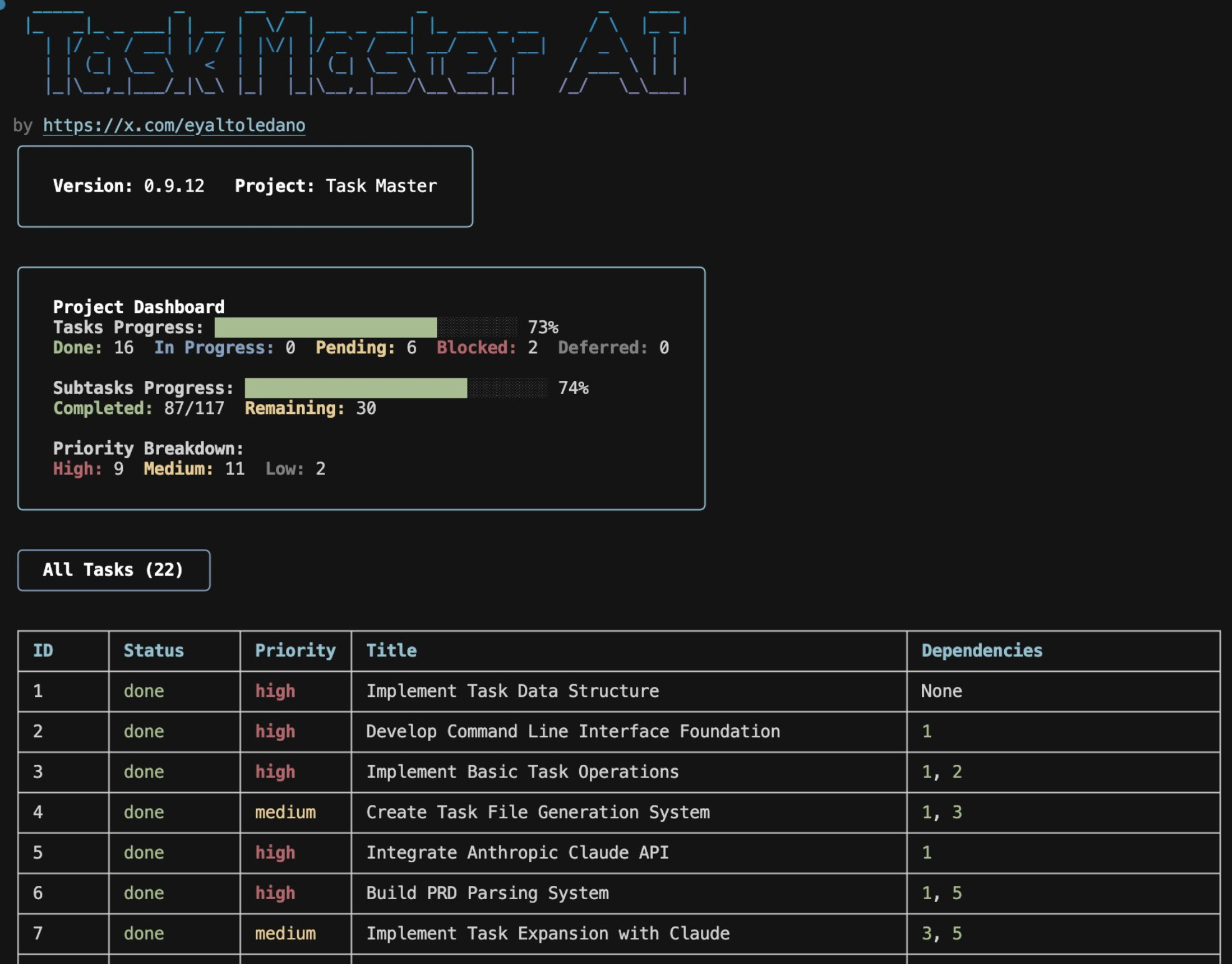
TaskMaster is an open-source project that automates task generation from Product Requirement Documents. It includes an MCP server that allows you to simply call "next step" or "next task" and it automatically knows what to work on next. I've used it extensively. It's effective and handles the complexity of task orchestration for you.
Option 2: Build Your Own System
You can create a simplified version, which uses a prompt-based approach. The templates I provide includes a Tech Lead agent prompt that breaks down specifications into specific, testable tasks.
Going DIY: A Simplified version of TaskMaster
For those who want to build their own system but need the core components, I provide a simplified version inspired by TaskMaster's architecture. This gives you the essential structure without the full complexity of their system. You can start with that and move to TaskMaster if you feel the need for something more sophisticated.
The Three Core Components
1. Tech Lead Prompt (agent_prompts/tech_lead_prompt.md)
- Located in the templates
/agent_prompts/folder - Acts as the "brain" that analyzes your specifications
- Breaks down complex features into manageable tasks
- Handles dependency mapping and risk assessment
- Can be customized for your specific domain or tech stack
2. Task Overview Structure (tasks/task.json)
- Single source of truth for all project tasks
- Contains the same structure as TaskMaster's
tasks.json
📋 Click to see example task.json structure
{
  "meta": {
    "projectName": "Your Project",
    "version": "1.0.0",
    "createdAt": "timestamp"
  },
  "tasks": [
    {
      "id": 1,
      "title": "Setup Database Schema",
      "description": "Create initial database tables and relationships",
      "status": "pending",
      "dependencies": [],
      "priority": "high",
      "complexity": 6,
      "subtasks": [],
      "testStrategy": "Verify schema with sample data",
      "tags": ["database", "foundation"]
    }
  ]
}
3. Individual Task Breakdowns (tasks/[task-id].md)
- Each task gets its own detailed markdown file
- Contains step-by-step implementation instructions
- Includes acceptance criteria and testing guidelines
- Follows the same format as TaskMaster but simplified
📝 Click to see example task breakdown
Task 1: Setup Database Schema
Overview
Create the foundational database structure for the user management system.
Steps
- Create users table with email, password_hash, created_at
- Create sessions table with user_id, token, expires_at
- Add foreign key constraints
- Create indexes for performance
Acceptance Criteria
- Users table created with all required fields
- Sessions table properly linked to users
- All constraints and indexes applied
- Sample data can be inserted successfully
Testing Strategy
Run migration script and verify with sample data insertion.
How It Works Together
- Input: Your comprehensive specifications (PRD, design document, architecture document)
- Processing: The Tech Lead prompt analyzes everything and generates structured tasks
- Output:
tasks/task.jsonwith the complete task overview- Individual
tasks/[id].mdfiles for each task's detailed breakdown
- Implementation: You work through tasks in dependency order, marking them complete as you go
This simplified approach gives you 80% of TaskMaster's benefits with 20% of the complexity, perfect for teams who want systematic task breakdown without having to install and learn a new tool.
The Two-Axis Breakdown Strategy
The Tech Lead agent breaks down scope across two critical axes:
1. Behavior Axis: Don't implement all user behavior at once
- Start with core user flows
- Add edge cases incrementally
- Build validation step by step
2. System Axis: Follow the natural development progression
- Data Model → Backend Logic → Frontend Components → UX Polish
- Each layer builds on the previous one
- Dependencies are clear and manageable
The Human-in-the-Loop Advantage
Here's where the magic happens. After each task completion, you can:
- Spin up
localhostand test the current milestone - Validate the implementation matches your expectations
- Catch issues early before they compound
- Course-correct immediately if something feels off
This prevents the nightmare scenario where the AI builds everything and you discover fundamental problems at the end. If the data model is wrong, you catch it after the first task, not 20 tasks later when it's already connected to your UI and you now have to untangle an absolute mess.
Why This Matters for Complex Features
If a feature is simple enough to implement in one shot, you probably don't need all these specifications. But if it's complex enough to require detailed PRDs, user stories, and technical architecture, then it's definitely complex enough to benefit from systematic task breakdown.
The goal is creating testable milestones where you can bring human judgment into the loop and ensure the AI stays on track.
🧩 Part 5: Context Window
Finally!
We now move into the implementation phase. We have great specifications, clear requirements, and a solid breakdown of how to build our feature. The AI model is ready to start working on the code.
Good specifications and detailed breakdowns are essential for good implementation, but there's a third element that really matters: context engineering aka how you manage what information the AI actually sees when it's working.
Context Window Management
Two key aspects affect context engineering when vibe coding:
Quantity (How Much Context)
The amount of content you provide matters. Breaking down tasks specifically should already help with this, but you need to be deliberate about what to include.
Here's a practical rule of thumb for Cursor's context window:
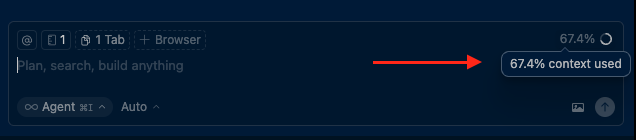 Cursor's context size indicator
When you see the context indicator creeping above 50% of the total context window, you have two options:
- Start a new chat - This gives you a fresh context window for new features
- Use the
/summarizecommand - This can help reduce the context window by condensing previous conversation history
Pro tip: Start a new chat for each new feature. Every message adds context to the AI, and old context can distract the model on new features, leading to worse performance overall. If you're working on a feature and wish to keep the context from the previous chat but the context window is already used above 50%, use the /summarize command in Cursor.
Quality (How Good the Context Is)
Quality matters just as much as quantity. Outdated or poorly formatted context can actually confuse your LLM, in just the same way it would confuse a developer.
Here's the tricky part about bad context: the AI won't tell you it's working with outdated or wrong information. It will confidently generate code based on whatever you give it. Bad context doesn't lead to "I don't know" responses—it leads to confident but wrong solutions that waste your time debugging.
The Two Areas of Context
The context provided to the model consists of two main parts:
1. Existing Codebase (Already Handled)
Modern AI coding tools like Cursor handle this exceptionally well. They use advanced retrieval systems and vectorize your entire codebase, automatically finding:
- The right files to edit
- Related components and dependencies
- Existing patterns and conventions
- Code that needs to be updated or removed
You don't need to manually manage this - the tools are already quite good at finding the right context from your codebase. For more details on how Cursor handles codebase indexing, see the official documentation.
2. External Context (Your Responsibility)
This is where you need to be deliberate about what context you provide. External context breaks down into three critical types:
- Documentation - Latest API docs, library documentation, and framework guides
- Logs - Console logs, server logs, and error stack traces
- Visual Feedback - Screenshots, recordings, and visual context for UX/UI work
In order to provide such external context, we're going to use the infamous MCPs (Model Context Protocols).
Understanding MCPs
Before we dive into the different types of external context, it's important to understand MCPs (Model Context Protocols). Invented by Anthropic, MCPs are a standardized way for AI coding assistants to connect with external tools and data sources. Think of them as bridges that allow your AI to access real-time information, interact with browsers, scrape websites, and perform automated tasks that weren't possible before.
MCPs have quickly become the standard for extending AI capabilities, but with thousands of MCPs now available, it's easy to get overwhelmed.
For each use case, I only recommend a handful of MCPs. Just pick one. Rather than having 50 MCPs installed, you'll have a much better workflow with a handful of high-quality, thoroughly tested tools that get the job done really well. The MCPs I recommend below are the ones I've extensively tested and can confidently recommend for production use.
Let's explore each of these in detail:
📚 Documentation (Keep it Current)
Why it matters: Your model's training cutoff might not include the latest documentation for your stack. Having current API docs, library documentation, and framework guides is crucial.
Best practices:
- Reference the latest version of your framework's documentation
- Include specific API endpoints and their current parameters
- Pull in migration guides when working with framework updates
- Use MCPs (Model Context Protocols) to fetch real-time documentation
Adding Framework Documentation to Cursor
Before diving into MCPs for external documentation, you should first add the documentation for your key frameworks and libraries directly to Cursor. This gives you immediate access to official docs without needing external tools.
How to add documentation in Cursor:
- Go to Cursor Settings → Indexing & Docs → Docs
- Add documentation URLs for your stack. For example:
- Next.js:
https://nextjs.org/docs - React:
https://reactjs.org/docs - Supabase:
https://supabase.com/docs - Tailwind CSS:
https://tailwindcss.com/docs - shadcn/ui:
https://ui.shadcn.com/docs
- Next.js:
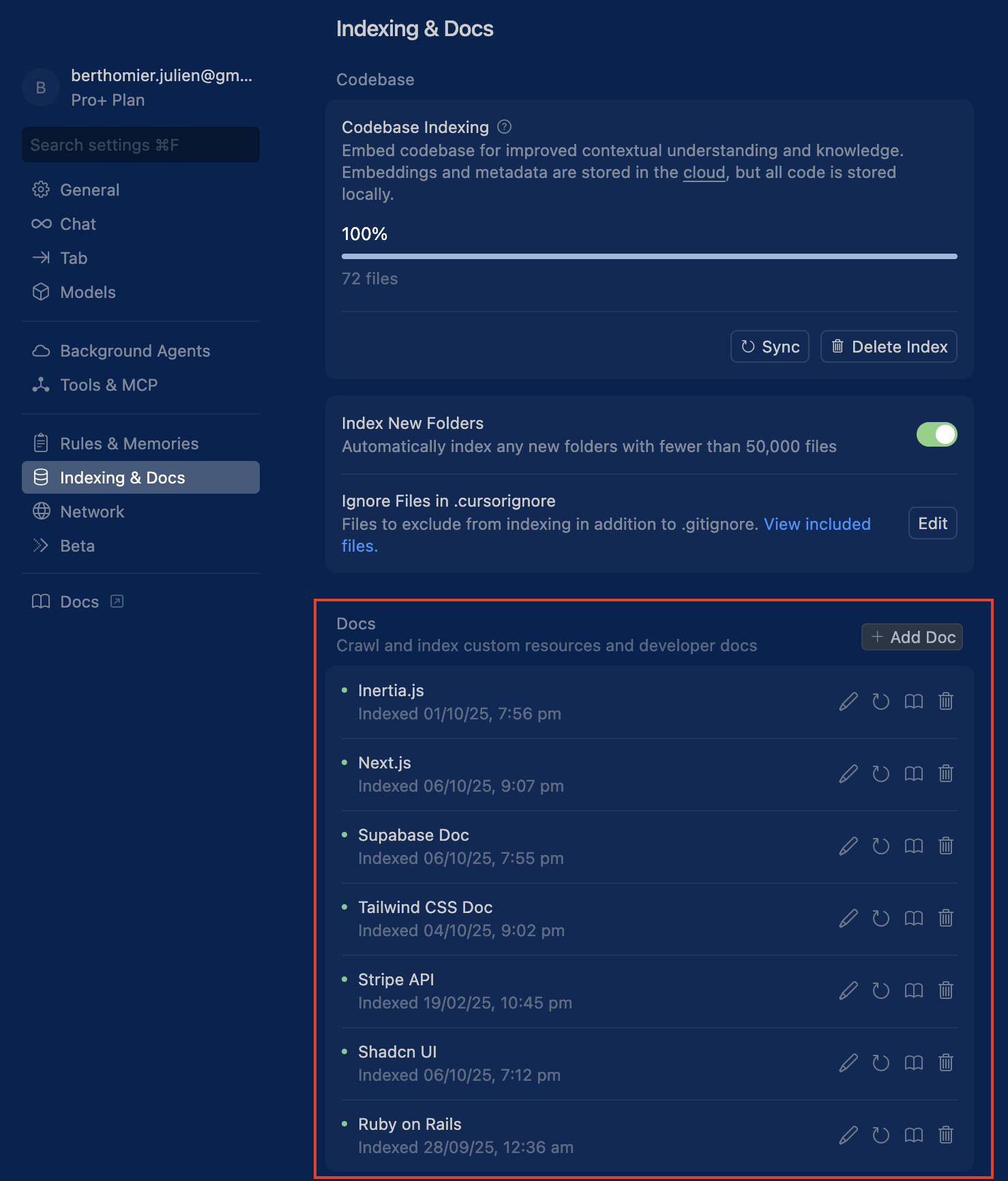
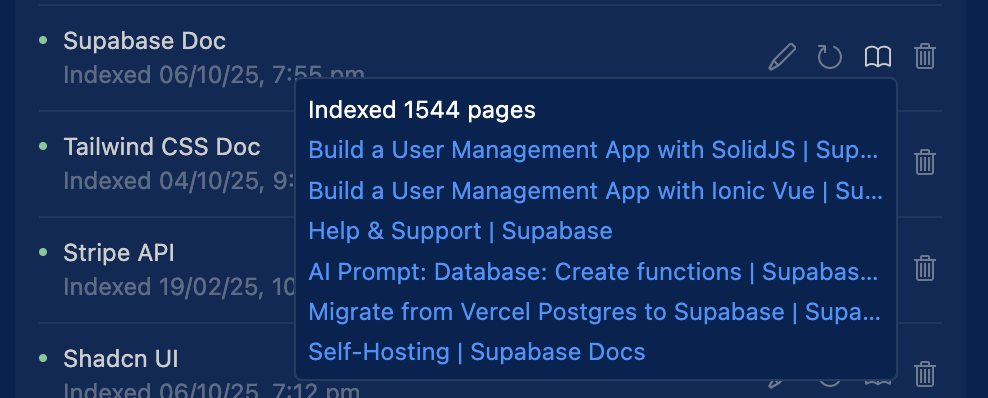
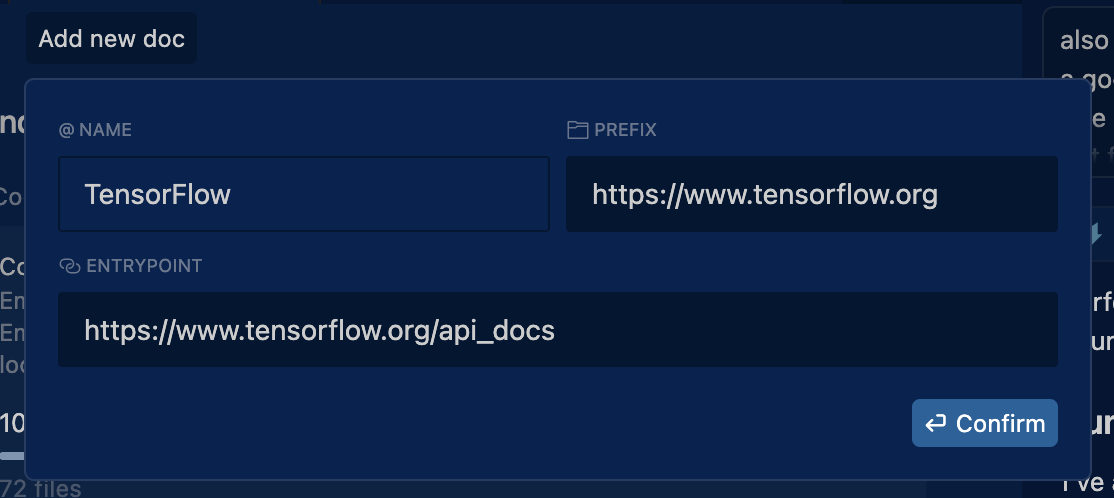
- Use in your code by referencing
@docsfollowed by the topic:@docs useEffect- pulls React useEffect documentation@docs supabase auth- pulls Supabase auth documentation@docs nextjs routing- pulls Next.js routing documentation
This integration allows Cursor to fetch and display official documentation within your editor, reducing context switching and ensuring you always have the latest docs available. For more details, see Cursor's documentation management guide.
Example for a typical stack: If you're using Next.js + React + Supabase + Tailwind CSS + shadcn/ui, add all five documentation sources. This way, when the AI is working on your code, it has immediate access to the exact API patterns, component props, and best practices for your specific stack.
Pro tip: Learning from Open Source Projects
When building a feature inspired by an open-source project, use Gitingest to turn any GitHub repository into a prompt-friendly text digest that Cursor can reference. This is incredibly helpful for understanding architectural decisions and implementation patterns from projects you admire.
Use case: You see a feature you like in an open-source tool (e.g., Excalidraw's canvas interaction, FastAPI's routing pattern) and want to replicate it in your project. Instead of manually browsing the repository:
- Go to Gitingest and paste the repository URL (or replace 'hub' with 'ingest' in any GitHub URL)
- It generates a text digest of the entire codebase
- Save it as a file to reference it in Cursor
- The LLM can now understand how they implemented the feature and suggest the best architecture for your use case
For a more powerful approach, you can turn any GitHub repository or documentation site into a dedicated MCP server using GitMCP. This gives your AI assistant persistent, contextual access to the entire codebase.
This is especially powerful when you're frequently referencing a specific framework or library, as the AI can pull context from the source code directly without you needing to manually copy and paste sections.
This dramatically speeds up learning from existing codebases and helps your AI assistant provide better architectural recommendations based on proven patterns.
Recommended MCPs for Additional Documentation:
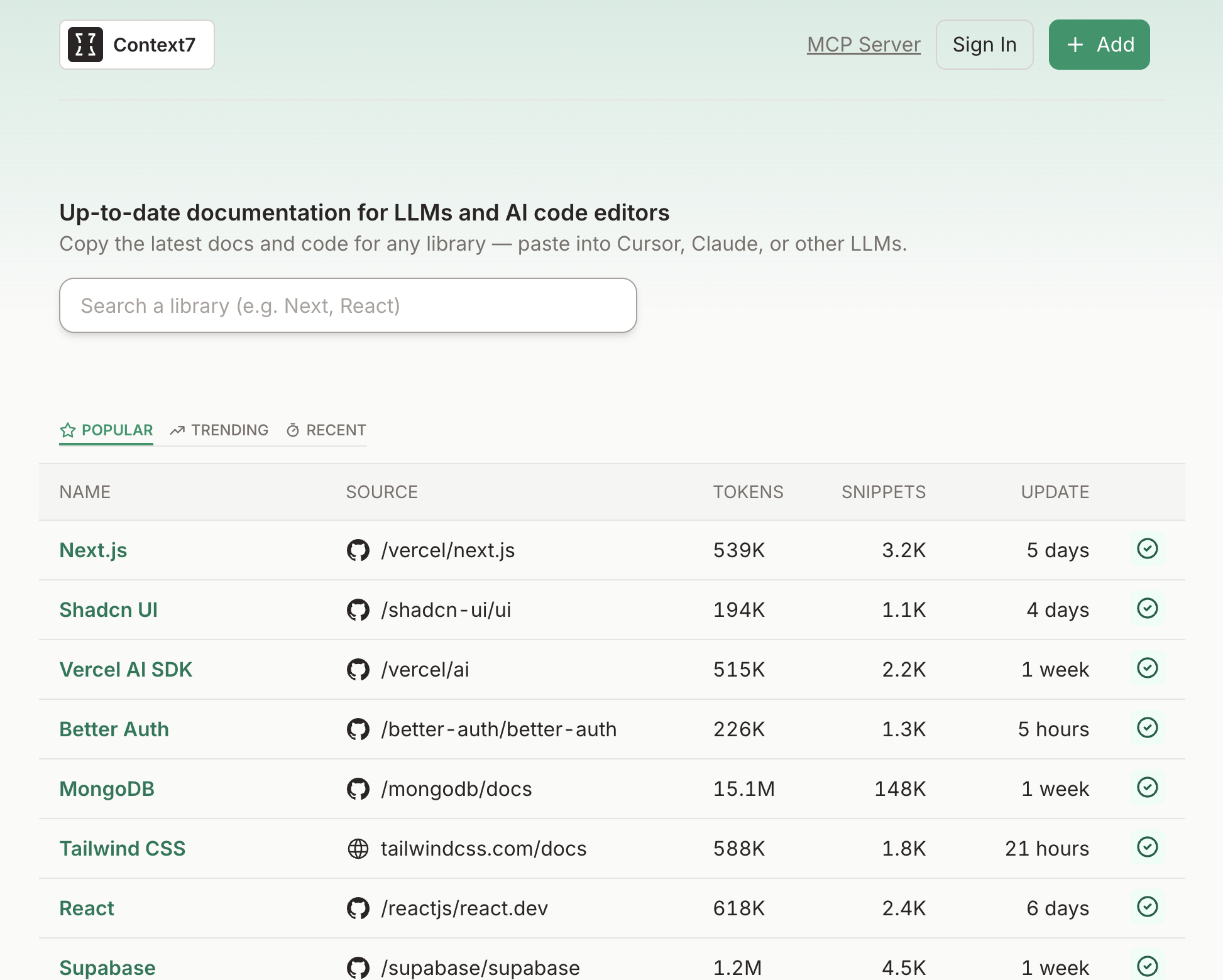
🏆 Context7
For fetching up-to-date library and API documentations. See their (MCP Server)
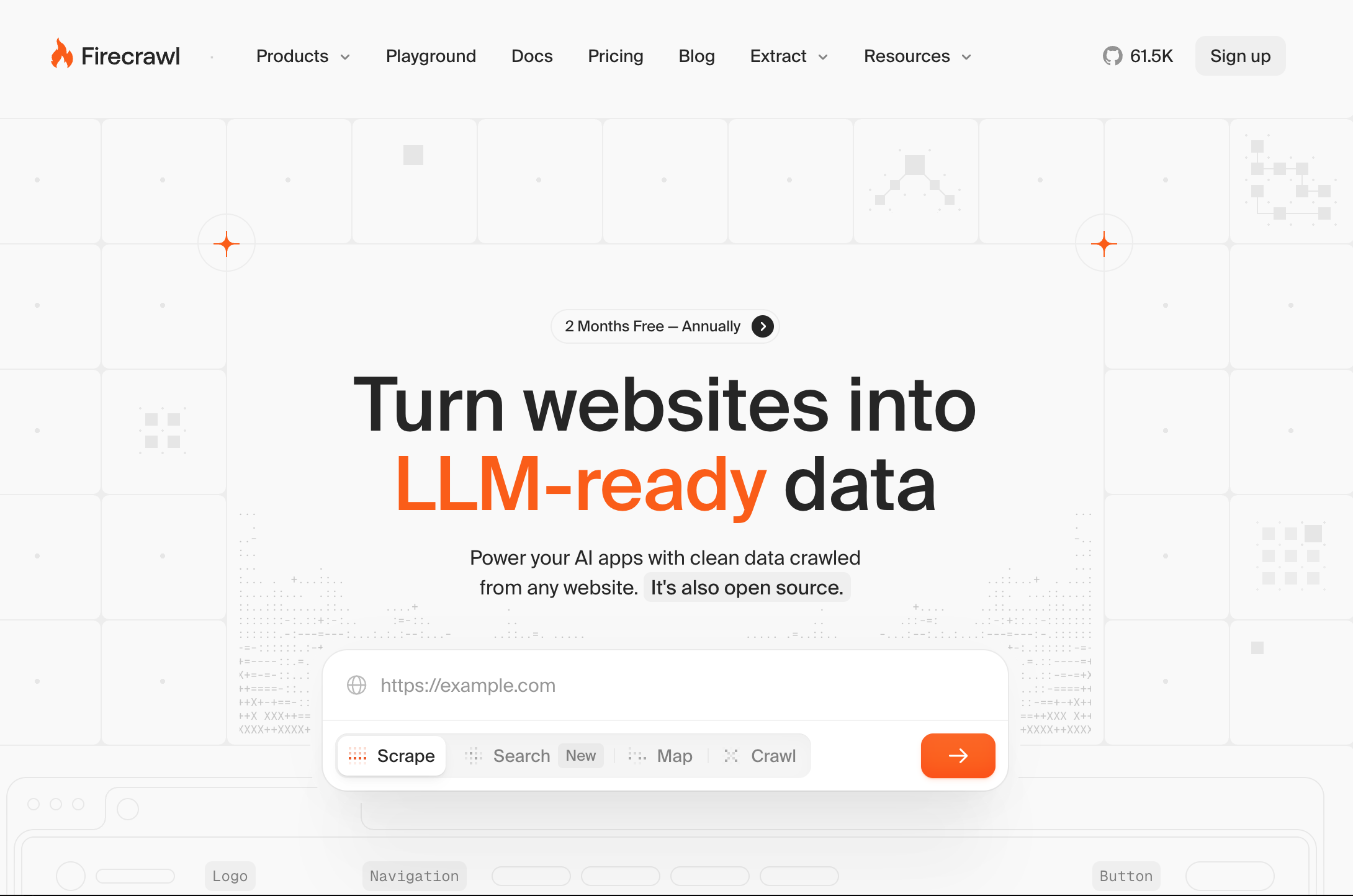
🏆 FireCrawl
For scraping and extracting content from documentation websites. See their (MCP Server)
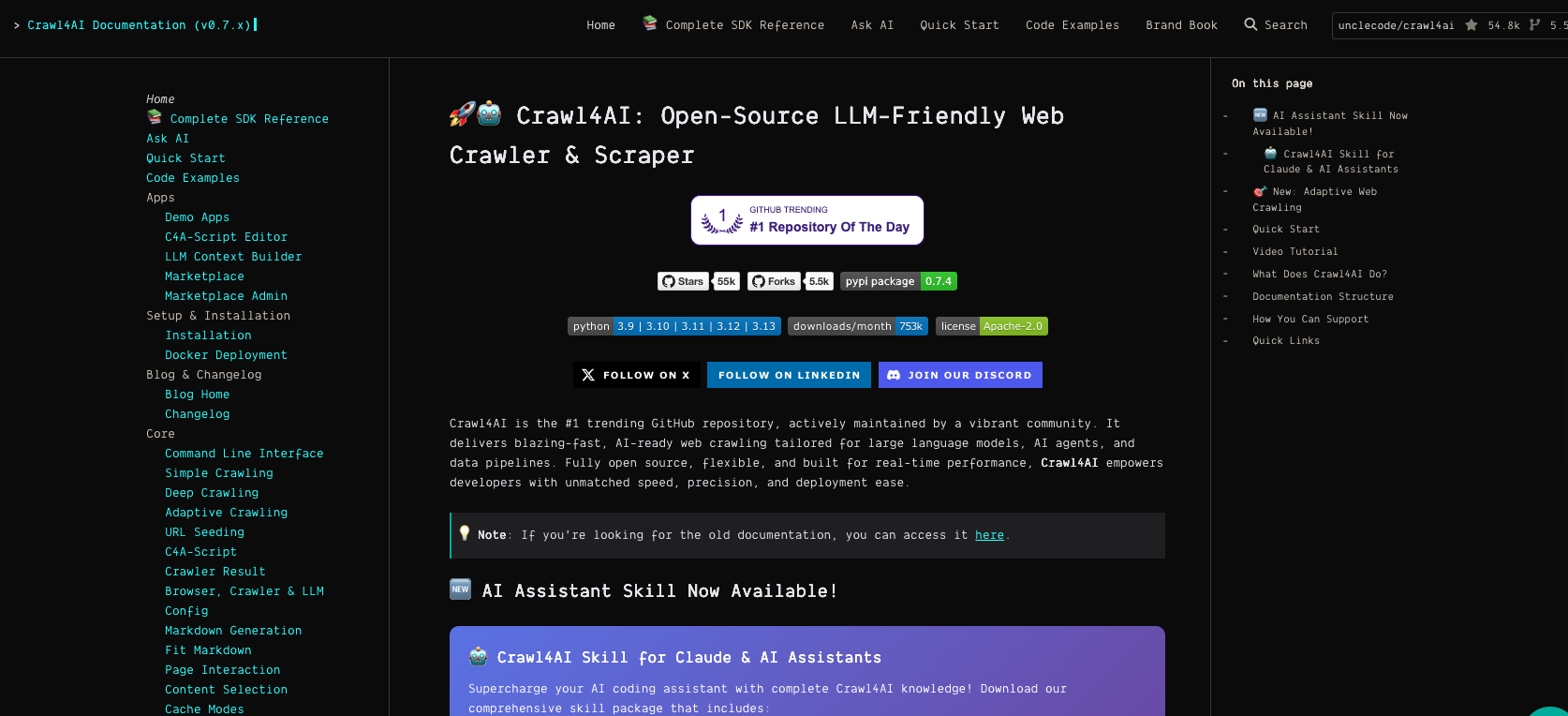
🏆 Crawl4AI
A fully open-source LLM-friendly web crawler and scraper for advanced data extraction. Unlike Context7 or FireCrawl, Crawl4AI gives you complete control and customization but requires significantly more setup and technical knowledge. Perfect for developers who want to self-host their crawling infrastructure or need advanced extraction capabilities. Check their documentation to learn how to integrate it as an MCP server.
Note: This option is recommended for teams with technical expertise who value full control and customization over ease of use.
🏆 Linkup
For real-time web search and accessing the latest documentation. Ranks #1 on OpenAI's SimpleQA factuality benchmark with AI-optimized search that provides structured responses and source attribution. See their MCP Server for Claude.

🏆 Perplexity MCP
For AI-powered search with cited sources. Perplexity excels at answering technical questions with source attribution, making it ideal for finding current best practices, comparing libraries, or researching implementation approaches when documentation alone isn't enough.
🔍 Logs (Show the Symptoms)
Why it matters: When debugging, the AI needs to see the actual error messages, stack traces, and console output to understand what's going wrong.
Best practices:
- Share both frontend console logs and server logs
- Include the full error stack trace
- Show network request/response details when relevant
- Capture logs at the moment the issue occurs
Recommended MCPs for Logs:
🏆 Chrome DevTools MCP
For comprehensive browser debugging, performance analysis, and automated testing. Provides direct access to Chrome DevTools capabilities including console logs, network requests, performance traces, and browser automation. Essential for debugging frontend issues, analyzing performance bottlenecks, and testing user interactions. The good part: it is maintained by Google and the Chrome DevTools team.
🏆 Playwright MCP
For comprehensive browser automation and end-to-end testing. Particularly powerful when you need to test specific user flows and navigate through your application to verify functionality. Allows you to automate complex user interactions, form submissions, and multi-step workflows. Essential for validating complete user journeys and ensuring your application works as expected from a user's perspective. The good part: it is maintained by Microsoft.
🏆 Browser MCP
For browser automation using your actual logged-in browser sessions. Unlike Playwright which launches fresh instances, Browser MCP connects to your existing Chrome browser via an extension. This means the AI can navigate websites where you're already logged in, avoiding bot detection and CAPTCHAs. Perfect for testing authenticated user flows or debugging issues that only appear when logged in.
❌ Browser Tools (Not recommended anymore)
I used to recommend this tool, but with Chrome DevTools MCP now available, it no longer makes sense. There are two main issues:
- You have to download a Chrome extension that is not verified by the Chrome store for it to work.
- It doesn't seem to be maintained anymore; it's been many months since the project was last updated.
🎨 Design (Give it Eyes)
When building products, you'll encounter design needs across five main categories. Each requires different tools and approaches. Here are the top recommended MCPs for each category based on extensive testing.
The Five Categories of Design Needs
When working on UX/UI, you typically need help with:
- UI Components - Buttons, forms, layouts, and interactive elements
- Illustrations - Custom graphics, empty states, loading states, onboarding visuals
- Images - Generated images, backgrounds, hero sections
- Icons - Interface icons, feature icons, navigation elements
- Visual Feedback - Annotations, UI reviews, and bulk feedback on existing interfaces
Let's cover the best MCPs and approaches for each:
1. 🧩 UI Components
When building interfaces, you need design inspiration and pre-built components that match modern UI patterns.
Recommended MCPs:
🏆 Magic UI MCP (If using Magic UI library)
If you're already using Magic UI as your component library, their MCP provides direct access to their component ecosystem. Ideal for teams committed to the Magic UI design system.
🏆 Magic MCP from 21st.dev (Library Agnostic - Recommended)
This is the most versatile option for UI component generation. Magic MCP is library-agnostic, meaning it works with any UI framework you're using (shadcn/ui, Material-UI, Chakra UI, etc.).
When to use it:
- Designing landing pages and need inspiration for hero sections, pricing tables, or feature grids
- Building product interfaces and want modern UI patterns for dashboards, forms, or modals
- Need quick component iterations without leaving Cursor
- Want to explore different UI approaches before committing to a design
Why it's powerful: It's like having v0.dev directly in your Cursor workflow, generating production-ready React components that integrate with your existing codebase.
Pro tip: When Words Fail, Show Don't Tell
Sometimes you know exactly what design you want but struggle to describe it. Instead of fighting with prompts, use these resources:
Design Inspiration (screenshot and reference them in Cursor):
- Dribbble - High-quality UI designs from professional designers
- Mobbin - Real mobile and web app screenshots from popular products
Workflow: Find a design you like, screenshot it, attach it to your Cursor chat, and say "Make this section look like this design while preserving our style and aesthetics." A picture speaks a thousand words. This is especially powerful for landing pages, pricing tables, dashboard layouts, and complex UI patterns where describing every detail would take paragraphs.
UI Component Libraries (AI can directly access and use):
- Kibo UI - High-quality shadcn/ui components (41 components, 6 blocks, 1101+ patterns). Free and open source
- ReactBits - Copy-paste React components, especially useful for landing page design
- Awesome UI Component Library - Comprehensive curated list across all major frameworks (React, Vue, Angular, etc.)
Workflow for Component Libraries: If you're using shadcn/ui, set up the shadcn MCP server. All shadcn components come with install commands and corresponding code, and the MCP server puts everything in a registry your AI can access directly. This means: (1) no web searches needed (which often miss components or return outdated results), and (2) no manual copy-pasting—the AI handles installation automatically. Just say "Add the button and dialog components" or "Build a contact form using shadcn components" and it's done.
Pro tip: You can configure the shadcn MCP server to access other component libraries like Kibo UI. This video explains how to set up the registry configuration in more detail.
2. 🎨 Illustrations
Custom illustrations add personality to your landing pages, empty states, loading screens, and onboarding flows.
Current State: I haven't found a good MCP server for illustrations yet. The best workflow remains using dedicated tools outside of Cursor.
Recommended Approach: Midjourney
For illustrations, Midjourney remains the gold standard. Here's why it doesn't make sense as an MCP:
- The best experience is browsing styles, experimenting with prompts, and exploring variations
- You need to see multiple options and pick the one that fits your vision
- Once you have the illustration, simply import it into your project
Pro tip for consistent illustrations:
Use Midjourney's Style Reference feature to maintain consistent visual styles across your application:
- Find a style you like - Browse Midjourney's community and find an artist's style that fits your brand
- Reference that style - Use the
--srefparameter to generate new illustrations in the same style - Build a style library - Keep a collection of style references for different moods (playful, professional, minimal, etc.)
This ensures your empty states, loading screens, and onboarding illustrations all feel cohesive rather than randomly generated.
Example workflow:
- Generate hero illustration for landing page in a specific style
- Save that style reference
- Generate empty state illustrations in the same style
- Generate loading state illustrations in the same style
- Your entire app now has consistent visual language
3. 📸 Images
You need generated images for hero sections, backgrounds, blog post covers, and visual content.
Recommended MCP:
🏆 ImageGen MCP
Uses OpenAI's DALL-E to generate images directly from Cursor. Perfect for:
- Hero section backgrounds
- Blog post cover images
- Marketing visuals
- Placeholder images for prototypes
When to use it:
- You need quick image generation without leaving your workflow
- You want to test different visual concepts rapidly
- You're building prototypes and need placeholder images
- You want AI-generated backgrounds for landing pages
4. 🎯 Icons
Icons are everywhere (navigation bars, feature lists, buttons, empty states, etc.). Finding, downloading, and importing SVG icons is time-consuming.
The issue is even with a solid UI library (which should include basic icons), you'll often need specific icons that aren't included. The typical workflow is tedious:
- Go to an icon website
- Search for the right icon
- Download it
- Import the SVG into your project
- Integrate it with your components
This happens constantly during development and breaks your flow.
Recommended MCP:
🏆 Icons8 MCP
Provides instant access to high-quality SVG and PNG icons directly in Cursor.
Why it's essential:
- Massive library - Access to 40,000+ icons across multiple styles
- No context switching - Search and insert icons without leaving Cursor
- Multiple styles - iOS, Material, Fluent, Color, and more
- Production-ready - SVG format for scalability, PNG for quick prototyping
Common use cases:
- Adding feature icons to landing page sections
- Building navigation bars with custom icons
- Creating icon-based bullet lists
- Adding visual indicators to buttons and CTAs
- Designing empty states with relevant icons
Pro tip: When designing landing pages, you'll often realize you need 5-10 different icons for your feature grid or benefits section. With Icons8 MCP, you can generate all of them in one session without breaking your flow.
5. 👁️ Visual Feedback & Annotations
When working on UX/UI, the AI needs to see what the interface actually looks like and understand exactly what needs to change.
Recommended MCP:
🏆 Pointa
For visual UI annotations and bulk feedback. I've been working on my own open-source tool for this exact workflow. Check out the GitHub repo and install it from the Chrome Web Store.
This is one of the most game-changing tools for vibe coding workflows. Pointa solves a critical problem: Cursor doesn't naturally communicate with the browser. If you've used V0's designer mode (where you can hover over elements and say "change this"), you know how powerful visual feedback can be. Pointa brings that workflow to Cursor—and it's completely free and open-source.
How it works:
-
Bulk Annotation Phase - Install the Chrome extension (completely free) and annotate your UI on
localhostdirectly. Click on any element and describe what needs to change. The key advantage: you can annotate 10+ things in a row across your entire website without context switching. Just keep clicking and describing. -
Automatic Implementation - All annotations are saved locally. Go back to Cursor and simply say: "Read the annotations and fix." The MCP server fetches your annotations, creates a task list, and fixes issues one by one.
Why this matters:
After shipping a feature, you spin up localhost and inevitably notice 5-6 different things to change (button placement, text copy, spacing issues, etc.). Instead of going back and forth to Cursor for each fix, you annotate everything while it's fresh and visible, then let Cursor handle all fixes in bulk.
The tool knows the exact element you're referencing on the exact page—no manual selector hunting or vague descriptions like "the button in the top right." This is visual interaction with your app combined with batch processing, exactly what modern AI-assisted development needs.
Memories: Building Project Context Over Time
Cursor's memories feature helps the AI remember important project-specific information, coding patterns, and preferences across different chat sessions.
Best practices:
- Let Cursor automatically create memories about your project structure and patterns
- Periodically review and validate memories in Cursor's settings
- Clean up outdated or incorrect memories to avoid future pitfalls
- Use memories to maintain consistency across different features and chat sessions
For more details on how to manage memories effectively, see the Cursor memories documentation.
🤝 Part 6: Human in The Loop
AI will likely write large parts of your code, but there are critical moments where it's genuinely more practical for you to step in. Not because the AI can't do it technically, but because certain tasks are either security-sensitive, involve clicking through third-party UIs, or require human judgment that's simply inconvenient to automate.
Here are the three scenarios where human intervention makes the most sense:
🔑 Generating and Adding API Keys
API keys are sensitive credentials. You don't want the AI handling your production secrets, and most key generation requires clicking through dashboards, verifying emails, or completing security challenges that AI can't easily navigate.
Examples:
- Generating production API keys for Stripe, SendGrid, or AWS
- Creating service account credentials
- Setting up OAuth client IDs and secrets
- Configuring webhook signing secrets
- Adding environment variables to production environments
Best practice: Have the AI create placeholder environment variables in your .env.example file and document what keys are needed, but you handle the actual generation and secure storage.
🔧 Setting Up Third-Party Services
Third-party service configuration often requires navigating external dashboards, verifying domain ownership, enabling specific features through checkboxes, or making account-level decisions that require context beyond what the AI has.
Examples:
- Setting up Google OAuth consent screens
- Configuring Stripe webhooks and test mode
- Verifying domain ownership in email services (SPF, DKIM records)
- Setting up Supabase projects and enabling RLS policies
- Configuring analytics platforms (PostHog, Mixpanel)
- Setting up CI/CD pipeline secrets in GitHub Actions
Best practice: Let the AI handle the code integration (API calls, SDK setup, error handling), but you handle the account configuration, security settings, and service activation.
✅ Testing Tasks on Localhost
When you've broken down a complex feature into smaller tasks (as we covered in Part 4), it's usually a good idea to validate each milestone before moving to the next. The AI can run automated tests, but you need to actually use the feature in your browser, click around, and verify it works as you intended.
Examples:
- Spinning up
localhostafter the data model is complete - Testing user flows after backend logic is implemented
- Verifying UI components match your expectations
- Checking edge cases and error states manually
- Validating the feature works across different browsers
- Ensuring the UX feels right (not just functionally correct)
Best practice: After each major task completion, take 5-10 minutes to manually test in localhost. This catches issues early before they compound into bigger problems.
Making Human Intervention Systematic
Here's the key insight: the AI should proactively tell you when human intervention is needed, not leave you guessing.
The Notification Approach
At the end of each task, prompt the AI to flag any required human intervention. Add this to your implementation prompts or cursor rules:
After completing each task:
- Verify all tests pass
- List any human intervention required with step-by-step instructions
- Mark the task as "Ready for Human Review" if manual testing is needed
This way, the AI explicitly tells you: "I've completed the code, but you need to manually test the login flow" or "I've integrated Stripe, but you need to add your API keys and configure webhooks."
The Tracking System: human-actions.json
For larger projects or when working in teams, I recommend creating a structured tracking file that the AI maintains throughout development. This file lives at your project root and gets updated as the AI encounters tasks requiring human intervention.
📋 Click to see example human-actions.json
{
  "actions_required": [
    {
      "id": "HA-001",
      "title": "Add Stripe API Keys",
      "status": "pending",
      "priority": "high",
      "category": "api_keys",
      "task_reference": "Task 3: Implement Payment Processing",
      "description": "Stripe integration is complete, but production API keys need to be added",
      "instructions": [
        "1. Go to https://dashboard.stripe.com/apikeys",
        "2. Generate a new Restricted Key with these permissions: Customers (Write), Payment Intents (Write), Webhook Endpoints (Write)",
        "3. Copy the key and add it to `.env` as STRIPE_SECRET_KEY",
        "4. Add the same key to your production environment (Vercel/Railway)",
        "5. In Stripe dashboard, go to Developers > Webhooks",
        "6. Add endpoint: https://yourdomain.com/api/webhooks/stripe",
        "7. Select events: payment_intent.succeeded, payment_intent.payment_failed",
        "8. Copy the webhook signing secret and add as STRIPE_WEBHOOK_SECRET"
      ],
      "blocked_tasks": ["Task 4: Email Receipt Generation"],
      "created_at": "2025-10-06T10:30:00Z"
    },
    {
      "id": "HA-002",
      "title": "Configure Google OAuth",
      "status": "pending",
      "priority": "high",
      "category": "third_party_setup",
      "task_reference": "Task 5: Social Authentication",
      "description": "Google OAuth integration code is ready, but OAuth consent screen needs configuration",
      "instructions": [
        "1. Go to https://console.cloud.google.com/apis/credentials",
        "2. Create a new OAuth 2.0 Client ID (or edit existing)",
        "3. Add authorized redirect URIs:",
        "   - http://localhost:3000/api/auth/callback/google (development)",
        "   - https://yourdomain.com/api/auth/callback/google (production)",
        "4. Copy Client ID and Client Secret",
        "5. Add to `.env`: GOOGLE_CLIENT_ID and GOOGLE_CLIENT_SECRET",
        "6. Go to OAuth consent screen tab",
        "7. Add your app name, support email, and logo",
        "8. Add scopes: email, profile",
        "9. Add test users for development phase",
        "10. Submit for verification once ready for production"
      ],
      "blocked_tasks": ["Task 6: User Profile Integration"],
      "created_at": "2025-10-06T12:00:00Z"
    }
  ]
}
How to use it:
- During task breakdown, ask the AI to identify any human intervention needed for each task
- During implementation, the AI updates
human-actions.jsonwhenever it completes work requiring your action - Before starting each coding session, review actions with
"status": "pending"and knock out what you can - After completing actions, change the status from
"pending"to"done"
The goal isn't to have the AI do everything, it's to have the AI do what it's good at (writing code, following patterns, handling repetition) while you do what you're good at (security decisions, UX judgment, service configuration, exploratory testing).
Think of it like a pilot and autopilot: the autopilot handles the tedious parts of flying, but the pilot still makes critical decisions, monitors systems, and takes over when needed.
🧪 Part 7: Testing Gatekeepers
Writing tests is critical as mentioned in our other article here.
Testing gatekeepers are automated safety nets that prevent broken code from reaching production. There are three different types you can use:
- watch mode during development
- pre-commit testing before version control
- CI/CD pipeline before production
🔄 Watch Mode: Real-Time Feedback
Watch mode runs your tests automatically as you develop, giving you instant feedback when something breaks. This is your first line of defense against regressions. The beauty of it is that it allows the LLMs to get real-time feedback on whether it is messing up anything in your code. This means it will have less investigation work to do to fix it later on. It knows exactly what caused the issue aka the last edit it made.
Setting Up Watch Mode in Cursor
Add to your implementation prompts:
Before starting implementation:
1. Start the test runner in watch mode
2. Keep all existing tests passing
3. Ensure tests pass before marking the task complete
Framework-specific commands:
npm run test:watch
# or
pnpm test:watch
🛡️ Pre-Commit Testing: Your Last Line of Defense
Pre-commit hooks ensure that no broken code enters your git history. This is especially critical when working with AI-generated code that might have subtle bugs.
Using Husky
# Install Husky
pnpm add -D husky

# Initialize Husky
npx husky init

# Add pre-commit hook
echo "pnpm test" > .husky/pre-commit
chmod +x .husky/pre-commit
For faster commits, use lint-staged to test only changed files:
# Install lint-staged
pnpm add -D lint-staged

# Add to package.json
{
  "lint-staged": {
    "*.{ts,tsx,js,jsx}": ["pnpm test --findRelatedTests"]
  }
}

# Update pre-commit hook
echo "pnpm lint-staged" > .husky/pre-commit
🚀 CI/CD Pipeline: The Final Gate
While watch mode and pre-commit hooks catch issues during development, CI/CD runs your full test suite before code reaches production - including slow tests like E2E and visual regression tests.
Setting Up GitHub Actions
Create .github/workflows/test.yml:
📄 Example workflow (Next.js/TypeScript)
name: Tests

on:
  push:
    branches: [main]
  pull_request:
    branches: [main]

jobs:
  test:
    runs-on: ubuntu-latest

    steps:
      - uses: actions/checkout@v4

      - uses: pnpm/action-setup@v3
        with:
          version: 8

      - uses: actions/setup-node@v4
        with:
          node-version: 20
          cache: 'pnpm'

      - name: Install dependencies
        run: pnpm install

      - name: Type check
        run: pnpm type-check

      - name: Lint
        run: pnpm lint

      - name: Run tests
        run: pnpm test

      - name: Build
        run: pnpm build
Enforce Tests Before Merge
Enable branch protection in GitHub (Settings → Branches → Branch protection rules):
- ✅ Require pull request before merging
- ✅ Require status checks to pass before merging
- ✅ Select your test workflow
Now no code (including AI-generated) can merge if tests fail. You are safe.
The Three-Tier System
This is the best testing safeguard I have found so far. If it seems like too much, you can probably skip watch mode as the other steps will catch the regressions anyway. Pre-Commit and CI/CD testing are non-negotiable though.
┌─────────────────────────────────────┐
│  🔄 Watch Mode (< 5s)                │  ← Instant feedback
│  • Real-time test feedback          │
│  • Auto-runs on file changes        │
└─────────────────┬───────────────────┘
                  │
┌─────────────────▼───────────────────┐
│  🛡️ Pre-Commit (< 30s)               │  ← Before git history
│  • Type checking                    │
│  • Fast unit and integration tests  │
│  • Blocks commit if fails           │
└─────────────────┬───────────────────┘
                  │
┌─────────────────▼───────────────────┐
│  🚀 CI/CD (< 15min)                  │  ← Before production
│  • Full test suite                  │
│  • Integration tests                │
│  • E2E tests                        │
│  • Build verification               │
│  • Blocks merge if fails            │
└─────────────────────────────────────┘
Tests get slower and more comprehensive at each stage. Pre-commit runs fast critical tests (< 30s), CI/CD runs everything.
🐛 Part 8: Debugging
Debugging with AI is fundamentally different from traditional debugging. The LLM can't see your screen, doesn't have psychic powers, and won't magically know what's wrong. But when given proper context, it becomes incredibly effective at diagnosing and fixing issues.
The key to successful debugging with AI is this: Treat the LLM like a senior developer you're asking for help. Would you send a Slack message saying "it's broken, fix it"? No. You'd provide context, logs, steps to reproduce, and what you expected vs. what actually happened. Do the same with your AI. Be kind and considerate.
Accessing Console Logs
As we discussed in Part 5: Context Window, effective debugging requires access to console logs. In the Logs section of Part 5, we recommended:
- Chrome DevTools MCP - For browser console logs, network requests, and performance analysis (maintained by Google)
- Playwright MCP - For browser automation and end-to-end testing (maintained by Microsoft)
These tools give your AI direct access to console output, network traffic, and browser state, making debugging significantly more effective.
Accessing Server Logs
While MCPs handle frontend logging beautifully, server-side debugging requires you to know where your logs live.
Here's the challenge: Cursor cannot read terminal output from running processes.
When you run pnpm run dev or rails server, logs appear in your terminal, but Cursor's AI has no way to access that terminal output. It can only:
- ✅ Execute new terminal commands (via the Terminal tool)
- ✅ Read log files from your filesystem (via the read_file tool)
- ❌ Read output from already-running processes in terminal windows
This means file-based logging is essential for effective AI-assisted debugging. Some frameworks do this by default (Rails, Laravel), while others require configuration (Next.js, Python).
Select your framework below to see the best approach:
Development (Default Behavior)
By default, Next.js outputs logs directly to the terminal where npm run dev is running.
⚠️ Problem: Cursor cannot read terminal output from running processes. You need to copy-paste logs manually.
Solution: Configure File-Based Logging
Use Winston or Pino to write logs to files that Cursor can read directly.
Install Winston:
npm install winstonConfigure logger (lib/logger.ts):
import winston from 'winston'

const logger = winston.createLogger({
  level: 'info',
  format: winston.format.json(),
  transports: [
    new winston.transports.File({
      filename: 'logs/error.log',
      level: 'error'
    }),
    new winston.transports.File({
      filename: 'logs/combined.log'
    }),
  ],
})

export default logger
Use in your code:
import logger from '@/lib/logger'

logger.info('Payment processing started', { userId: user.id })
logger.error('Payment failed', { error: error.message })
Prompt Cursor to Read Logs
"Read logs/error.log and show me the most recent errors
related to the payment processing."
✅ Best Practice: Always configure file-based logging for Next.js projects. It makes debugging with Cursor significantly easier.
Logging Best Practices
When debugging, good logging makes all the difference. Follow these simple practices (add them to your prompts / cursor rules).
You will find in the templates I provide a comprehensive logging-standards.mdc that you can add to your project - and adapt to your stack. The key principles are:
1. Use Structured Logging (JSON Format)
Log data as structured objects, not strings. This makes logs easily searchable and parseable.
// ✅ Good: Structured
logger.info('Payment processed', { userId: 123, amount: 49.99, orderId: 'ORD-456' })

// ❌ Bad: Unstructured
logger.info(`Payment of $49.99 processed for user 123`)
2. Include Context (Who, What, When, Where)
Always log enough information to track down issues:
- User/Request ID - Who triggered this?
- Key data - What values matter? (amounts, IDs, status)
- Location - Which function/endpoint?
3. Log Critical Entry/Exit Points
Log when important operations start and finish, especially for external API calls, database operations, or payment processing.
4. Never Log Sensitive Data
Never log passwords, API keys, credit card numbers, session tokens, or personal information.
Language-Specific Examples:
Using Winston (recommended):
import winston from 'winston'

const logger = winston.createLogger({
  level: 'info',
  format: winston.format.json(),
  transports: [
    new winston.transports.File({ filename: 'logs/app.log' })
  ]
})

// Log with context
logger.info('Payment started', {
  userId: user.id,
  amount: payment.amount,
  orderId: order.id
})

// Log errors with stack traces
try {
  await processPayment(payment)
  logger.info('Payment successful', { orderId: order.id })
} catch (error) {
  logger.error('Payment failed', {
    orderId: order.id,
    error: error.message,
    stack: error.stack
  })
}
The Bug Reporting Format That Actually Works
The single most important factor in good debugging is the quality of your bug report. A good bug report provides everything the LLM needs to diagnose and fix the issue. A bad one forces the LLM to make assumptions, which almost always leads to wasted time and regressions.
I have worked with enough developers in the past, providing terribly lazy bug reports (sorry), to know that saying “it doesn’t work” without context is considered a war crime in software engineering.
Every bug report must include:
- Trigger & Location - What action causes it? Where does it happen?
- Expected vs Actual Behavior - What should happen vs what actually happens?
- Steps to Reproduce - Clear, numbered steps anyone can follow
- Environment Details - OS, browser, device, app version
- Logs & Evidence - Console logs, server logs, network logs, stack traces
❌ Bad: "The payment button is broken"
✅ Good: "Clicking 'Submit Payment' on /checkout returns 500 error with 'Invalid API key' in server logs. Expected: redirect to confirmation. Actual: error message. Steps: 1) Login, 2) Add item, 3) Checkout, 4) Click submit"
Using the Debugging Agent
For complex bugs, use a structured debugging agent. I've created a comprehensive Debugging Agent prompt in the templates at specifications/agent_prompts/debugging_agent_prompt.md.
This prompt includes:
- Complete bug report template with all the best practices above
- Structured 3-phase debugging workflow (Collection → Analysis → Fix)
- Language-specific guidance for accessing logs
- Examples of good vs bad bug reports
- MCP integration instructions for Chrome DevTools and Playwright
Simply reference this prompt when debugging:
@debugging_agent_prompt.md

I have a bug to report. [Provide your bug details here]
The agent will guide you through a 3-phase process: gather all required information, analyze root cause, then implement and verify the fix.
"Rubber Ducking" with AI
In programming, there's a debugging technique called rubber ducking - where you explain your problem out loud to an inanimate object (traditionally a rubber duck). The act of explaining forces you to think through the problem systematically, and often you'll realize the solution mid-explanation without the duck saying a word.
AI is the perfect rubber duck. Unlike the inanimate version, it can actually respond, ask clarifying questions, and help you explore your thinking.
As you explain, you'll often catch your own mistakes. The AI might ask questions like:
- "Have you checked if X is null?"
- "What happens if Y occurs before Z?"
- "Could this be a race condition?"
These questions trigger realizations you wouldn't have had by staring at code alone.
When the AI struggles to fix an issue:
If Cursor tries multiple times but can't fix a bug, force it to rubber duck with itself:
Stop trying to fix this immediately. Use the Rubber Duck approach. Instead:

1. Walk me through what you understand about the problem
2. List your assumptions about how this code works
3. Identify what you're uncertain about
4. Ask me clarifying questions before proposing a solution

Let's think through this together rather than trying random fixes.
This approach works surprisingly well. By forcing the AI to articulate its understanding first, it often identifies gaps in its mental model or realizes assumptions it was making. The process of explaining reveals the solution, just like it does for humans.
Both humans and AI models benefit from externalizing thought processes. When you force yourself (or the AI) to explain reasoning step-by-step, you expose faulty assumptions, logical gaps, and overlooked details that were invisible when just "thinking about it."
Here's what I find funny about this technique - you actually become the AI's rubber duck. Think about that for a second. The traditional rubber ducking pattern is: human explains problem → inanimate duck "listens" → human finds solution. But when you prompt the AI to walk through its reasoning, you're sitting there silently reading as the AI explains its problem to you. You don't even need to respond. The AI just types out its understanding, realizes its mistake mid-explanation, and goes "oh wait, I see the issue now."
I've experienced this firsthand on several debugging sessions. The AI gets stuck, I ask it to explain what it thinks is happening, and halfway through its explanation it essentially goes "never mind, I figured it out." You're literally serving as a rubber duck for an AI model. The future is weird.
👀 Part 9: Code Reviews
Code reviews are a fundamental part of any engineering workflow. When you're vibe coding at 10x the speed with AI agents generating hundreds of lines per session, having automated reviewers becomes even more critical. You need a second set of eyes catching bugs, security issues, and code quality problems before they make it to production.
The AI code review space is exploding right now - there are dozens of tools launching every month. But if you're using Cursor, two tools stand out: Cursor BugBot (tightly integrated with Cursor) and CodeRabbit (platform-agnostic with rich features).
Pro tip: The Free Alternative
Before investing in paid code review tools, here's a super simple approach that costs nothing but tokens: use Cursor's @ symbol to reference your Git branch and ask the LLM to review its own code.
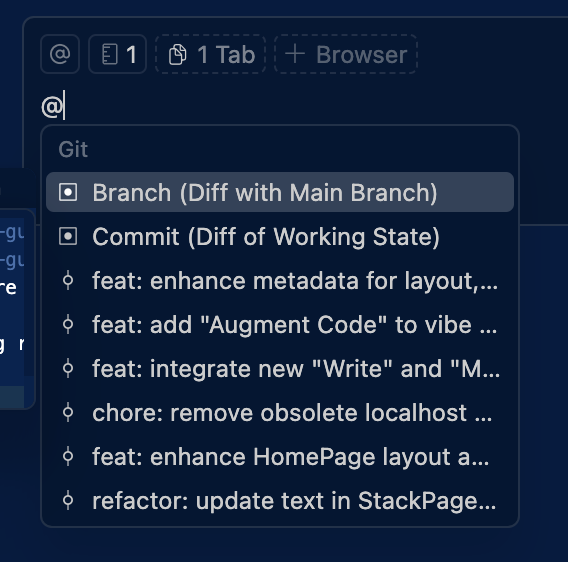
How it works:
- Before pushing your branch to GitHub, open Cursor chat
- Type
@and you'll see two Git options:- Branch (Diff with Main Branch) - Reviews all commits on your feature branch compared to main
- Commit (Diff of Working State) - Reviews only uncommitted changes (what's currently in your working directory)
- Choose the appropriate option:
- Use Branch when you're ready to push your entire branch and want a comprehensive review
- Use Commit for quick checks on recent changes before committing
- Ask: "Review all changes for potential bugs, security issues, or code quality problems"
- The LLM analyzes the diffs and flags potential issues
Why this works: You're essentially getting a second opinion on AI-generated code. You can even use a different model than the one that wrote the code (e.g., Opus 4.6 reviews GPT Codex 5.3 output, or vice versa) for additional perspective.
This approach is perfect for solo developers on a budget or teams just starting with AI code reviews. Once you're shipping more frequently or working with larger teams, consider upgrading to dedicated tools below.
Cursor BugBot
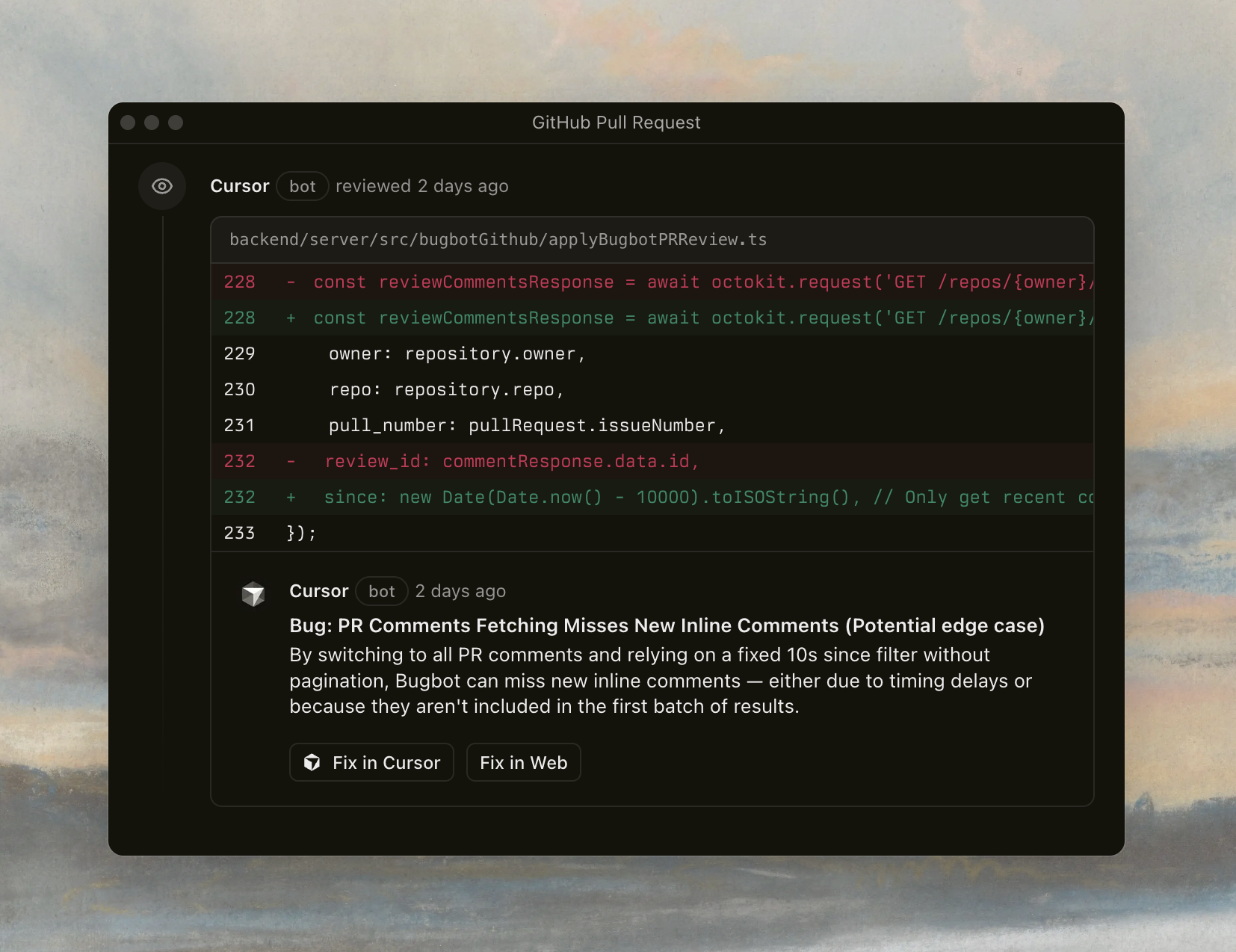
What It Does: BugBot automatically reviews your pull requests on GitHub, focusing on detecting hard logic bugs with a low false-positive rate. It's particularly strong at reviewing AI-generated code and catching the nuanced bugs that slip past traditional linters.
Key Features:
- Custom Rules: Create
.cursor/BUGBOT.mdfiles to define project-specific coding standards. BugBot includes the root file plus any files up the directory tree from your changes. - One-Click Fixes: When BugBot flags an issue, you can send it straight to Cursor or launch an agent to fix it with one click.
- High Resolution Rate: During beta, over 50% of bugs identified by BugBot were fixed before the PR merged.
Pricing: $40/user/month (200 PRs for individuals, unlimited for teams). 14-day free trial.
Best For:
- You're heavily invested in Cursor
- You're generating lots of AI code and need specialized review
- You want seamless "Fix in Cursor" integration
- GitHub-only workflow
Limitations:
- Expensive compared to alternatives
- GitHub only (no GitLab/Bitbucket)
- Requiresto install Cursor
CodeRabbit
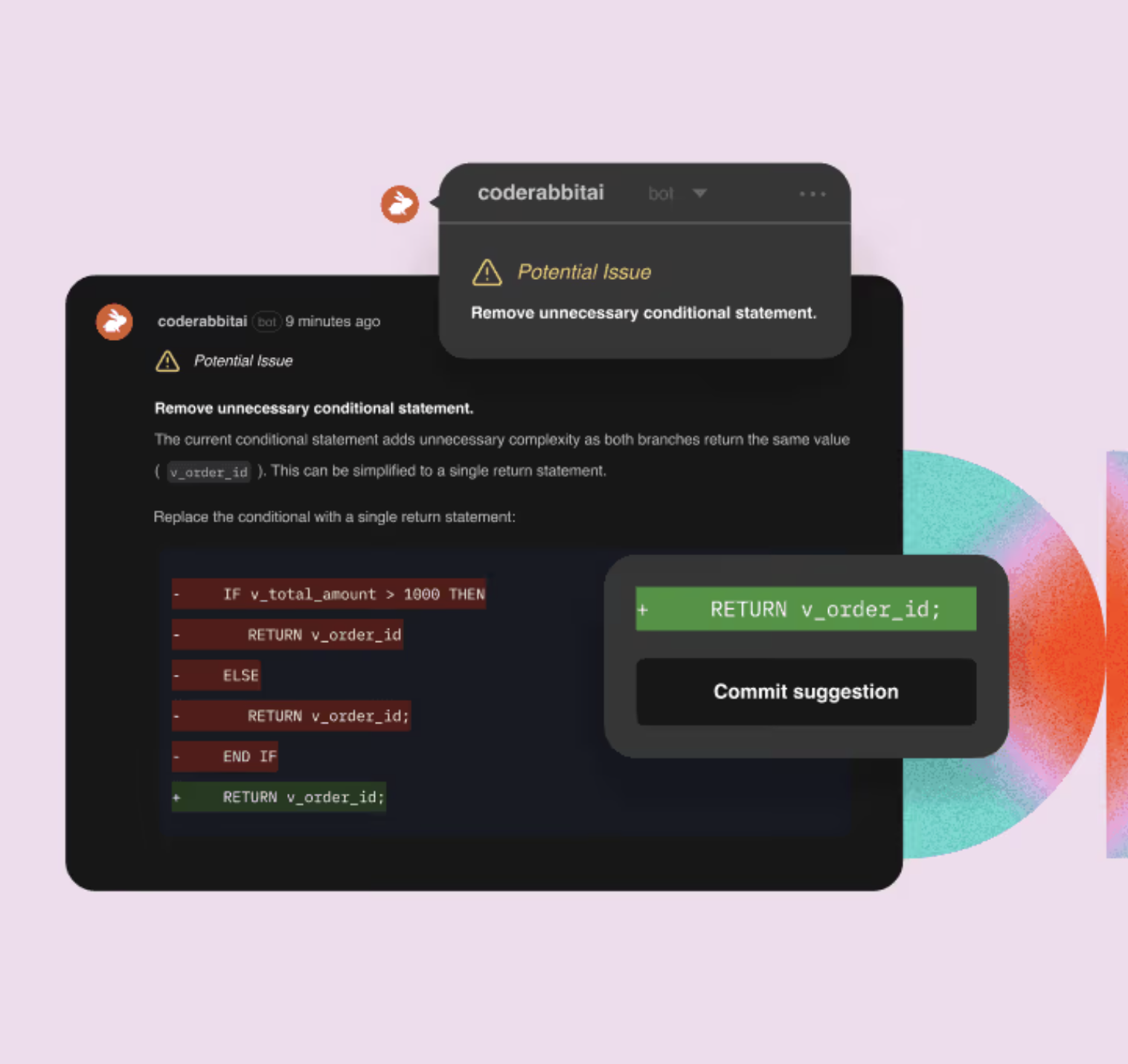
What It Does: CodeRabbit provides comprehensive codebase-aware reviews with automatic linter integration, security analysis, and code graph analysis. It runs 40+ static analyzers and linters combined with advanced AI reasoning.
Key Features:
- MCP Integration: Connects to external tools (Jira, Linear, documentation, Figma) for richer context understanding.
- Code Graph Analysis: Uses AST-based analysis to understand dependencies across your entire codebase, not just the PR diff.
- 40+ Linters: Automatically runs popular static analyzers, linters, and security tools.
- Agentic Chat: Generate code, unit tests, and issues with multi-step workflows.
- Auto-Learning: Gets smarter over time based on your feedback and coding patterns.
- Multi-Platform: Works with GitHub, GitLab, Bitbucket. IDE extensions for VS Code, Cursor, and Windsurf.
Pricing: $15-30/user/month. Free tier available. Free for open-source projects. 14-day Pro trial.
Best For:
- You need multi-platform support
- You want comprehensive security and quality analysis
- Budget is a concern (half the price of BugBot)
- You're working on open-source projects
- You want rich external context through MCP
Limitations:
- Less tightly integrated with Cursor specifically
- Can occasionally provide false positives requiring manual review
Which One Should You Choose?
Start with the free Git diff review (@ + Git branch) if you're just getting started or working solo. It costs nothing but tokens and provides immediate value by catching obvious issues before they reach your repo. Use this for at least a few weeks to build the habit of reviewing code before pushing.
Upgrade to CodeRabbit when you're pushing code daily and want automated PR reviews. At $15-30/user, it's significantly cheaper than BugBot, works across platforms, and provides comprehensive coverage with 40+ linters. The free tier lets you test extensively before committing.
Add BugBot if you're generating massive amounts of AI code in Cursor and need specialized review optimized for AI-generated code patterns.
📦 Part 10: Version Control
Version control is one of the most powerful tools for managing AI-assisted development. When Cursor's AI agents make extensive code changes across multiple files in minutes, Git transforms potentially chaotic work into structured, reviewable, and reversible commits.
This section covers both fundamental version control principles and practical automation strategies for vibe coding workflows.
Key Version Control Principles
When to Commit
Create commits for logical checkpoints that represent semantic boundaries, not arbitrary saves. The core principle: commit based on features, not time.
For vibe coding specifically:
✅ Commit incrementally as you complete logical units of work. Since Cursor agents can make extensive modifications, you need structured tracking more than ever.
✅ Commit when something works and doesn't break existing functionality. Each commit should represent a stable state you could potentially deploy.
✅ Keep commits small and granular. Fixing two different bugs should produce two separate commits. Tiny, atomic commits make code reviews easier and help isolate issues when debugging.
✅ Each commit should be focused. One commit = one concept. If you're adding a feature AND refactoring AND fixing a bug, that's three commits.
Bad commit patterns:
# Too vague
git commit -m "updates"
git commit -m "fixed stuff"

# Too broad
git commit -m "added login, fixed navbar, updated styles"

# Time-based rather than logic-based
git commit -m "end of day changes"
Good commit patterns:
# Clear, focused commits
git commit -m "feat: add OAuth login with Google"
git commit -m "fix: resolve navbar z-index issue on mobile"
git commit -m "refactor: extract user validation logic to utils"
Commit Message Best Practices
Use Conventional Commits format with structured types to make commit messages actually useful and enable automated tooling.
Standard commit types:
feat:- New featuresfix:- Bug fixesdocs:- Documentation changesrefactor:- Code restructuring without behavior changestest:- Adding or updating testschore:- Maintenance tasks (dependencies, configs)perf:- Performance improvementsci:- CI/CD pipeline changesbuild:- Build system or dependency changesrevert:- Reverting previous commits
Examples:
# Simple commit
feat: add user authentication

# With scope
feat(auth): add OAuth login with Google

# With body for context
fix(api): resolve rate limiting bug

Rate limiter was incorrectly counting requests per user
instead of per IP address. Updated logic to use IP-based
tracking and added tests.

# Breaking change
feat(api)!: change user ID format to UUIDs

BREAKING CHANGE: User IDs changed from integers to UUIDs.
All API endpoints now expect UUID format for user identifiers.
Writing guidelines:
✅ Use imperative mood - "Fix bug" not "Fixed bug" or "Fixes bug"
✅ Keep first line under 50 characters - Forces you to be concise
✅ Capitalize the first letter - Consistent formatting
✅ No period at the end - It's a title, not a sentence
✅ Add body for complex changes - Explain the "why" not the "what"
✅ Reference issues/tickets - Link to context: Closes #123 or Fixes #456
Branching Strategy
For solo projects or small teams doing vibe coding, keep your branching simple. You don't need GitFlow or complex strategies - those are for large teams with strict release schedules.
Recommended approach:
mainbranch - Always deployable, production-ready code- Feature branches - One per feature or fix
- Delete after merge - Keep your repo clean
Branch naming conventions:
# Features
feature/user-authentication
feature/payment-integration

# Bug fixes
fix/navbar-mobile-bug
fix/api-timeout-issue

# Experiments
experiment/new-ui-design
experiment/performance-optimization

# Refactors
refactor/database-queries
refactor/component-structure
Workflow:
# Start new feature
git checkout main
git pull origin main
git checkout -b feature/user-auth

# Work on feature, commit incrementally
git add .
git commit -m "feat(auth): add login form component"
git commit -m "feat(auth): integrate OAuth provider"

# Push and create PR
git push -u origin feature/user-auth

# After PR merged and deployed
git checkout main
git pull origin main
git branch -d feature/user-auth
For vibe coding specifically:
✅ Auto-create feature branches when starting new work with AI. Configure your workflow to automatically create a branch named after the feature.
✅ Create backup branches before making experimental changes with AI agents. Name them backup/feature-name so you can easily roll back.
✅ Never force push to main/master - This is a hard rule. Fix problems with new commits, not by rewriting history.
Automated Commit Workflows
Now that you understand version control principles, let's talk about automating commits in your vibe coding workflow.
Why automation matters
Here's the thing: version control is critical, but it's also boring and easy to forget. When you're deep in flow state, watching Cursor generate code across multiple files, stopping to craft a perfect commit message feels like friction.
The result? Most developers end up doing one of two things:
- Forgetting entirely - Hours of work with zero commits, no way to roll back
- Lazy mega-commits -
git commit -m "fixed stuff"covering 47 files and 3 different features
Neither is good. The first is dangerous (no safety net), the second defeats the purpose of version control (impossible to review or revert specific changes).
The solution: Make Git versioning automatic so you don't have to think about it. Let the tools handle the boring parts while you stay in flow. Here are three approaches, each suited to different working styles.
Approach 1: Fully Automatic with Cursor Hooks
Best for: Long, autonomous AI sessions where you want hands-off operation
Cursor supports hooks that trigger automatically at specific points in your workflow. You can configure these in .cursor/hooks.json:
{
  "version": 1,
  "hooks": {
    "stop": [
      { "command": "git add . && git commit -m \"chore: auto-commit agent changes\" || true" }
    ]
  }
}
How it works:
- When the agent interaction completes, it stages all changes
- It commits immediately with a predictable fallback message
- If you want AI-generated messages, use Cursor's built-in Git commit message generation in the UI
Note about GitButler:
GitButler offers Cursor hooks integration that automatically creates a new branch for every chat window. While this sounds convenient, it's actually overkill for most workflows in my honest opinion.
Why GitButler's approach is problematic:
- Creates a branch for every new chat (not every feature)
- With context window management, you'll open many chats for one feature
- Results in branch sprawl that doesn't follow Git best practices
- Best practice is: branches per feature/fix, not per chat session
GitButler works well as a visual Git client (desktop app) for reviewing commits and managing branches, but the automatic branch-per-chat workflow isn't ideal. Skip the GitButler hooks unless you specifically want that granular branching.
Learn more: Using Cursor Hooks with GitButler
Pro tip: Combine hooks with Cursor Rules to enforce commit conventions:
.cursor/rules/git.mdc:
name: Git Conventions
trigger: always
Git Workflow Rules
When creating commits:
- Always use Conventional Commits format
- Types: feat, fix, docs, refactor, test, chore, build, ci, perf, revert
- Keep commit messages under 50 characters for the subject
- Use imperative mood ("Add feature" not "Added feature")
- Create focused, single-purpose commits
When creating branches:
- Use prefixes: feature/, fix/, experiment/, refactor/
- Use kebab-case for branch names
- Branch names should be descriptive but concise
Pros:
- ✅ Zero friction - commits happen automatically
- ✅ Never forget to commit your work
- ✅ Good for long, exploratory sessions
Cons:
- ❌ Less control over commit granularity
- ❌ Can create noisy commit history
- ❌ Requires trust in auto-generated messages
Approach 2: MCP Server for Intelligent Commits
Best for: When you want AI-powered commit generation but with human approval
MCP servers can analyze your Git changes and generate intelligent commit messages. Several Git MCP servers exist:
Popular options:
mcp-server-git- Basic Git operationsmcp-server-auto-commit- LLM-powered commit message generationmcp-server-git-cz- Supports multiple LLM providers (DeepSeek, Groq, etc.)- GitHub MCP - Manage GitHub operations (issues, PRs, repositories) directly from Cursor. Useful for creating issues from bugs, managing pull requests, or searching across repositories without leaving your editor.
Pros:
- ✅ AI generates intelligent commit messages
- ✅ Human approval ensures quality
- ✅ Analyzes actual code changes (not just context)
Cons:
- ❌ Requires external API (OpenAI, etc.)
- ❌ Setup is more complex
- ❌ Adds slight friction to workflow
Approach 3: Cursor Commands (Recommended for Human-in-the-Loop)
Best for: When you want reusable commit shortcuts with full control
Cursor Commands are reusable prompts stored as markdown files in .cursor/commands/. When you type / in Cursor's chat, the IDE lists all available commands.
Create .cursor/commands/commit.md:
Smart Commit
Generate a conventional commit message and commit the current changes.
Objective
Create a well-formatted commit following Conventional Commits specification based on the work completed in this conversation.
Requirements
- Analyze staged and unstaged changes using git diff
- Choose appropriate commit type (feat, fix, docs, refactor, test, chore, build, ci, perf, revert)
- Write clear, concise subject line (50 chars max)
- Include scope if relevant (e.g., feat(auth): add OAuth)
- Add body if changes need explanation
- Reference any relevant issue numbers
- Use imperative mood ("Add" not "Added")
Process
- Review all changes made in this session
- Generate a conventional commit message
- Show me the proposed message
- Wait for my approval or modifications
- Stage all relevant files
- Execute the commit with approved message
Output
A properly formatted git commit following Conventional Commits specification.
Additional useful commands:
.cursor/commands/c.md (quick version):
Quick Commit
Quick commit with auto-generated message based on conversation context.
Generate a conventional commit message from our conversation and commit immediately. Use the most recent work as context for the commit message.
.cursor/commands/review-and-commit.md:
Review and Commit
Review all changes thoroughly before committing.
Process
- Show me a summary of all changed files
- Show key diffs for each file
- Identify any potential issues (linting, tests, etc.)
- Propose a conventional commit message
- Wait for my approval
- Commit with approved message
How to use:
# In Cursor chat, type:
/commit

# Agent automatically:
# 1. Analyzes your changes
# 2. Proposes a commit message
# 3. Waits for approval
# 4. Commits the work
Pros:
- ✅ Version-controlled with your project (team can use same commands)
- ✅ Simple setup - just markdown files
- ✅ Leverages conversation context automatically
- ✅ Full human control over when to commit
- ✅ Easy to customize per project
Cons:
- ❌ Still requires typing
/commit(minimal friction) - ❌ Not fully automatic like hooks
Recommended Setup: The Ideal Workflow
Here's the workflow that follows Git best practices while automating the boring parts. This is what you should actually use:
The Three-Step Automation Strategy:
- Branch creation - Manual trigger via command, automatic execution
- Commit - AI-assisted message generation with manual review
- Push - Manual (you decide when to push to remote)
1. Add Git conventions to Cursor Rules (.cursor/rules/git.mdc):
name: Git Conventions trigger: always
Commit Message Format
Always use Conventional Commits format:
Types:
- feat: New features
- fix: Bug fixes
- docs: Documentation changes
- refactor: Code restructuring
- test: Adding/updating tests
- chore: Maintenance tasks
Format: <type>(<scope>): <subject>
Guidelines:
- Use imperative mood ("Add" not "Added")
- Keep subject under 50 characters
- Add body for complex changes
- Reference issues when relevant
Branch Naming
Use prefixes: feature/, fix/, experiment/, refactor/ Use kebab-case: feature/user-authentication
2. Create Cursor Commands (.cursor/commands/):
Create these commands for your workflow:
/new-branchor/nb- Create a new feature/fix branch following naming conventions/commit- Smart commit with approval/c- Quick commit
Branch creation command (.cursor/commands/new-branch.md):
Create New Branch
Create a new Git branch following project naming conventions.
Process
- Ask what type of branch I need (feature, fix, experiment, refactor, hotfix)
- Ask for a brief description
- Generate the branch name (e.g.,
feature/user-authentication) - Show me the proposed branch name
- Wait for my approval
- Execute:
git checkout -b <branch-name>
Use Git conventions from project rules for branch naming.
3. Use Cursor's built-in AI commit message generation:
- Stage your changes in Cursor's Git panel
- Click the ✨ button next to the commit message input
- Review/edit the generated message
- Commit when ready
This gives you high-quality commit messages without relying on unofficial CLI commands.
4. Push manually when ready:
# After one or more commits on your feature branch
git push -u origin feature/your-feature-name

# Or just
git push
Why this workflow is better:
✅ Branches follow Git best practices - One branch per feature/fix, not per chat
✅ No branch sprawl - You control when to create branches for meaningful work units
✅ Commit quality stays high - AI drafts messages, you still review before committing
✅ You control pushes - Review your commits before sharing with the team
✅ Context window friendly - Open as many new chats as needed, all work on same branch
✅ Cursor Rules provide conventions - Agent knows how to name branches and format commits
Typical workflow:
# Starting new feature
You: "/new-branch for a new feature: OAuth login with Google"
Agent: "Create branch: feature/oauth-google-login"?
You: "yes"
Agent: *creates branch*

# You work on the feature across multiple chat sessions
# Each agent stop = automatic commit using Cursor Hooks

# When feature is complete
git push -u origin feature/oauth-google-login
# Create PR, get reviews, merge
🚀 Part 11: Deployment
AI can help you build features quickly, but deployment is where rubber meets the road. This section covers getting your AI-generated code into production safely and maintaining it there.
The golden rule: Keep it simple. As a solo developer using vibe coding, you don't need enterprise-level complexity. You need a deployment setup that's reliable, automated, and doesn't slow you down.
The Three-Environment Strategy
You need different environments to test different things. Too few environments means bugs reach production. Too many means complexity overhead that kills your velocity.
For solo developers or small dev teams, three environments hit the sweet spot:
- Local (
localhost:3000) - Where you build and iterate fast - Staging (e.g.,
staging.yourapp.com) - Where you validate in production-like conditions - Production (e.g.,
yourapp.com) - Where real users interact with your app
Each serves a distinct purpose. Here's how they work:
1. 🏠 Local - Your development playground
Purpose: Test features as you build them, iterate quickly, break things without consequences.
What you test here:
- Does the feature work?
- Does the UI look right?
- Do tests pass?
- Are there any obvious bugs?
Key characteristic: Fast feedback loop. You're working on localhost:3000 (or whatever port your framework uses), hot reloading on every change, and validating that your AI-generated code actually works. This is where you use identify small bugs or UI issues early. You annotate everything that looks off while it's fresh, then batch-fix it.
2. 🎭 Staging - Production's dress rehearsal
Purpose: Test your code in a production-like environment before real users see it. This is where you catch issues that only appear when your app runs on a real server.
What you test here:
- Performance: How fast do pages load? Are there slow API calls?
- Server behavior: Does SSR work correctly? Are server actions behaving as expected?
- Database interactions: Do migrations run smoothly? Is data persisting correctly?
- Third-party integrations: Are webhooks working? Do OAuth flows complete?
- Build process: Does the production build succeed? Are there any build-time errors?
- Environment variables: Are all secrets properly configured?
- Mobile responsiveness: How does it look on real devices hitting a real URL?
Key characteristic: This is your safety net. Every feature should pass through staging before touching production. Share staging URLs with beta testers, clients, or teammates (if you have them) to get feedback before launch.
Why it's not optional: Some bugs literally cannot be caught on localhost. CORS issues, SSL certificate problems, serverless function timeouts, database connection pooling issues, etc. These only surface when running on real infrastructure.
3. 🚀 Production - The real deal
This environment is sacred. Only deploy here after features are validated in staging. If something breaks here, real users are affected.
Best practice: Never test experimental features directly in production. Never commit "let me try this" code straight to main if that triggers production deploys. Use staging first, always.
Choosing Your Hosting Platform
The right platform depends on your stack, but here are four battle-tested options that work great for solo developers or small teams:
Vercel - Best for Next.js, React, and static sites
Why it's great:
- Zero-config deployment for Next.js (they make it)
- Automatic preview deployments for every push
- Global CDN with edge functions
- Free tier is generous for side projects
- Serverless functions out of the box
Best for: Frontend-heavy apps, Next.js applications
Pricing: Free tier covers most solo projects. Pro plan starts at $20/month when you need more.
Setup time: 5 minutes. Connect GitHub, pick your repo, done.
Railway - Best for full-stack apps with databases
Why it's great:
- Deploy anything (Node, Rails, Python, Go, Rust, etc.)
- Built-in PostgreSQL, Redis, MongoDB provisioning
- Environment variables management is excellent
- Automatic deployments from GitHub
- No serverless constraints—run long-running processes
Best for: Full-stack apps, APIs, apps with background jobs, projects needing traditional servers (not serverless)
Pricing: $5/month credit on free tier, then pay-as-you-go ($0.000463/GB-hour for RAM)
Setup time: 10 minutes. Connect GitHub, add services (database, app), configure environment variables.
Fly.io - Best for global deployment and flexibility
Why it's great:
- Deploy globally with low latency anywhere in the world
- Full Docker support—deploy anything that runs in a container
- Built-in PostgreSQL, Redis
- WebSocket and long-running connection support
- Extremely flexible infrastructure
Best for: Apps needing global distribution, WebSocket-heavy applications, complex deployment requirements
Pricing: Generous free tier (3 small VMs, 3GB storage). Beyond that, ~$2-5/month for small apps.
Setup time: 15-20 minutes. Requires a bit more config than Vercel/Railway, but super flexible.
Render - Best for developers who want simplicity with power
Why it's great:
- Simple, intuitive UI that's easier to navigate than AWS or GCP
- Built-in PostgreSQL, Redis databases
- Automatic deploys from GitHub with preview environments
- Static sites, web services, cron jobs all in one platform
- Free SSL certificates and automatic HTTPS
Best for: Full-stack apps, Python/Django apps, Ruby on Rails, static sites, projects needing straightforward deployment without Docker complexity
Pricing: Free tier for static sites and web services (750 hours/month). Paid plans start at $7/month for always-on services.
Setup time: 10 minutes. Connect GitHub, choose service type, done.
Platform Recommendation Decision Tree
Do you use Next.js?
├─ Yes → Vercel (easiest, built by Next.js creators)
└─ No → What's your priority?
    ├─ Simplicity + managed services → Railway or Render
    │   (Great for: quick full-stack apps, less DevOps)
    ├─ Flexibility + global edge → Fly.io
    │   (Great for: Docker, multi-region, WebSockets)
All four are solid choices. Pick the one that feels right for your stack and move on. You can always migrate later if needed (but you can go a very long way with either).
Setting Up Automated Deployments with GitHub Actions
Manual deployments are error-prone and slow. Automated CI/CD means every push gets tested, built, and deployed without you lifting a finger.
The Standard Workflow
Most platforms (Vercel, Railway, Render, Fly.io) have built-in GitHub integration that deploys automatically on push. This is the easiest path:
- Connect your GitHub repo to your hosting platform
- Configure branch-based deployments:
mainbranch → Productionstagingbranch → Staging environment- Any other branch → Preview deployment (optional)
That's it. No GitHub Actions needed for basic deployments, the platforms handle it.
When to Use GitHub Actions
Use GitHub Actions when you need custom pre-deployment steps that platforms don't provide:
Common use cases:
- Running tests before deployment
- Running linters and type checking
- Building Docker images
- Running database migrations
- Notifying team channels (Discord, Slack)
- Custom security scans
- Generating build artifacts
For setting up automated tests in your CI/CD pipeline, see Part 7: Testing Gatekeepers, which covers the complete testing workflow including GitHub Actions setup.
Pro tip: Most solo developers don't need custom GitHub Actions for deployment. Start with platform-native auto-deploy (Vercel, Railway, Render all support this out of the box). The testing workflow from Part 7 will run automatically before any deployment, blocking broken code from reaching production.
Managing Environment Variables
Your app behaves differently in each environment. Database URLs, API keys, feature flags—all need to be environment-specific and kept secure.
Staging vs Production: Using Different Credentials
Use different credentials for staging and production. Always.
Why this matters:
- Security isolation - If staging credentials leak (more common since you test/share more freely), production remains secure
- Data separation - Staging should never touch production databases or real user data
- Rate limits - API usage in staging won't eat into production quotas
- Cost tracking - Separate billing/usage metrics per environment
- Safe testing - Test payment flows, send emails, trigger webhooks without affecting real users
Service-Specific Guidance:
Payment Processors (Stripe):
- Staging: Use test mode keys (
sk_test_...) - Production: Use live mode keys (
sk_live_...) - Test payments in staging without charging real cards
Email Services (SendGrid, Postmark):
- Staging: Separate API key, optionally whitelist recipient addresses
- Production: Different API key, full delivery enabled
OAuth Providers (Google, GitHub):
- Staging: Register separate OAuth app with staging callback URLs
- Production: Different OAuth app with production callback URLs
- Prevents redirect_uri mismatches
Best Practices
✅ DO:
- Use
.env.exampleto document required variables (commit this) - Keep
.env.localin.gitignore(never commit secrets) - Prefix client-side variables with
NEXT_PUBLIC_(Next.js) or similar - Store secrets in your hosting platform's dashboard
- Use descriptive variable names:
DATABASE_URLnotDB
❌ DON'T:
- Hardcode secrets in source code
- Commit
.envfiles with real credentials - Use production API keys in local development
- Share environment variables in chat messages or screenshots
- Reuse the same secrets across multiple projects
The Deployment Checklist
Before pushing to production, verify:
- ✅ Feature works correctly in staging
- ✅ All environment variables are configured
- ✅ Database migrations are applied (if applicable)
- ✅ Tests pass locally and in CI (if using GitHub Actions)
- ✅ No console errors or warnings in staging
- ✅ Mobile responsiveness checked
- ✅ Performance is acceptable (no 5-second page loads)
- ✅ Third-party integrations tested (webhooks, OAuth, etc.)
- ✅ No hardcoded development URLs or secrets in code
Pro tip: Create this as a GitHub issue template or save it in your project's DEPLOYMENT.md.
Checklists prevent "I forgot to update the environment variable" disasters.
What About Monitoring?
For solo developers just starting out, your hosting platform's built-in monitoring is enough:
- Vercel: Built-in analytics, deployment logs, error tracking
- Railway: Service metrics, deployment logs, uptime monitoring
- Render: Service metrics, deployment logs, health checks
- Fly.io: Monitoring dashboard, metrics, health checks
When to add dedicated monitoring:
- You have paying customers who depend on uptime
- You need to debug production errors that aren't obvious from logs
- You want detailed performance metrics
If you reach that point, consider:
- Sentry for error tracking (free tier is generous)
- LogRocket for session replay and debugging
- BetterStack for uptime monitoring
Don't add these until you actually need them. Your platform's native tools are enough for 95% of early stage projects. Focus on building features, not setting up monitoring infrastructure.
Handling Deployment Failures
When staging deployment fails:
- Check the deployment logs (every platform shows these)
- Look for common issues: build errors, missing dependencies, environment variables not set
- Ask AI to debug with the error logs: "Here are the deployment logs, what's wrong?"
- Fix locally, push again
When production deployment fails (but staging worked):
- Check if environment variables are different between staging and prod
- Look for hardcoded staging URLs in your code
- Verify database migrations ran successfully
Emergency rollback: every hosting platform will have some kind of rollback feature to go back to a previous deployment. If production is broken and you're panicking, just rollback immediately. Debug and fix in staging, then redeploy when it's working. Don't try to debug production in real-time.
Your Simple Deployment Flow
Here's what your day-to-day deployment process should look like:
- Build feature locally → Test on
localhost, fix bugs, verify database operations, polish UI, run full test suite - Push to staging branch → Automatic deployment to staging environment
- Test in staging → Real URLs, real performance, real behavior
- Merge to main → Automatic deployment to production
- Quick production check → Open production URL, verify feature works
Total time from "feature complete" to "live in production": 5-10 minutes.
Deployment should be boring. Automated. Reliable. Set it up once, then forget about it and focus on building features.
🔒 Part 12: Special Audits
AI-generated code moves fast. Sometimes too fast. AI coding assistants don't think about security hardening, performance optimization, or cost efficiency the same way experienced developers do. They'll generate code that works, but that code might:
- Leave security vulnerabilities wide open (insecure API endpoints, weak authentication, exposed credentials)
- Create performance bottlenecks (inefficient database queries, memory leaks, poorly optimized algorithms)
- Rack up expensive bills (unnecessary API calls, bloated cloud resources, inefficient third-party service usage)
That's where special audits come in. Unlike your continuous testing and code review, these are scheduled deep-dives—comprehensive inspections that catch the mess AI-generated code can create before it becomes a crisis. This section covers three types of audits you should run regularly:
- Security Audits - Find vulnerabilities before attackers do
- Performance Audits - Identify bottlenecks and optimize for speed
- Cost Audits - Control spending on APIs, cloud services, and AI usage
Think of these as cleaning up after the AI party. Let's break down each one.
🛡️ Security Audits
Security audits focus on identifying vulnerabilities, attack vectors, and potential exploits in your codebase. AI can generate functionally correct code that's full of security holes, especially when dealing with authentication, authorization, data validation, and external APIs.
Pro tip: While I provide typical things to focus on below, the best approach is to use AI to conduct these audits. I've created a dedicated security audit prompt that you can find in the templates folder at /templates/audits/security_audit_prompt.md. Just copy-paste it into your repository, provide your codebase context, and let it systematically review your code for vulnerabilities.
Why Security Audits Matter
Overall AI coding assistants prioritize making things work over making them secure.
Research consistently shows that AI-generated code often introduces vulnerabilities even in syntactically correct implementations. Studies (such as the Veracode 2025 GenAI Code Security Report) have found that security performance in AI-generated code remains flat regardless of model sophistication. The AI doesn't think about edge cases like SQL injection, XSS attacks, or exposed API keys—it just wants the feature to work.
If you scroll through X, you'll find plenty of cautionary tales from developers who shipped AI-generated code without security reviews. The pattern is always the same: app works great in testing, gets deployed, then gets compromised within days because the AI prioritized functionality over security fundamentals.
Real-world example: An AI might generate an authentication endpoint that works perfectly in testing but forgets to verify the user owns the resource they're accessing. This creates an IDOR (Insecure Direct Object Reference) vulnerability where any authenticated user can access any other user's data by changing an ID in the URL.
OWASP Top 10 Coverage
Security is a beast of its own and you could go down a very big rabbit hole on this.
My approach is to cover the 20% of security threats that lead to 80% of the headaches. Unless you are Uber or OpenAI, you are unlikely to be dealing with extremely sophisticated Russian hackers. You will be dealing with the most common attacks.
A good start is to make sure your regular security audits should check against the OWASP Top 10. The OWASP Top 10 a standard awareness document that represents a broad consensus about the most critical security risks to web applications, globally recognized by developers owasp as a first step toward more secure coding.
It covers:
- Broken Access Control
- Cryptographic Failures
- Injection Attacks (SQL, XSS, etc.)
- Insecure Design
- Security Misconfiguration
- Vulnerable and Outdated Components
- Identification and Authentication Failures
- Software and Data Integrity Failures
- Security Logging and Monitoring Failures
- Server-Side Request Forgery (SSRF)
Don't try to memorize this list unless you plan to make app security your full-time job. Just reference it during audits and spot-check your codebase for each category.
Security Auditing Tools
Below is a list of tools (apps and MCPs) you can use to stress test your code's security:
- Semgrep - SAST, SCA, and secrets scanning with AI-powered noise filtering. Specifically designed for "Secure Vibe Coding" with features that reduce false positives in AI-generated code. Includes an MCP server for running security scans directly from Cursor. Free community edition available.
- OWASP ZAP - Free, open-source penetration testing tool (actively maintained)
- Snyk - Dependency vulnerability scanning (free tier: unlimited tests for open-source projects)
- SonarQube - Static code analysis (free community edition)
- Burp Suite - Web application security testing (free community edition, paid pro version)
npm audit/pip-audit/cargo audit- Built-in dependency checkers (free, run them regularly)
How to use them:
- Run Semgrep in CI/CD to catch security issues in AI-generated code with minimal false positives
- Run
npm auditorpip-auditweekly in CI/CD - Use Snyk for automated pull requests fixing vulnerabilities
- Run OWASP ZAP or Burp Suite before major releases
⚡ Performance Audits
Performance directly impacts user experience and business outcomes. The numbers are brutal:
- Every 100ms of latency can cost ecommerce applications up to 8% in sales conversion
- 53% of mobile users abandon sites that take longer than 3 seconds to load
- A 1-second delay in page load time can reduce customer satisfaction by 16%
Google also uses page speed as a ranking factor for SEO. Slow sites rank lower in search results.
AI generates code that works, but it doesn't think about efficiency. It'll happily create N+1 query problems, load entire datasets into memory, or make redundant API calls, because... why not?
Performance audits identify bottlenecks, inefficient code, and resource-heavy operations. AI often prioritizes "making it work" over "making it fast," leading to performance issues that only surface at scale.
The best approach is to use AI to conduct these audits. I've created dedicated performance audit prompts in the templates folder:
- General audit:
/templates/audits/performance_audit_general_prompt.md - Page-specific audit:
/templates/audits/performance_audit_page_specific_prompt.md
Just copy-paste the appropriate prompt into Cursor, provide context, and let it systematically review your performance.
Performance Audit Types
You'll typically run two types of performance audits: general audits (broad overview) and page-specific audits (targeted debugging).
1. General Performance Audit
A comprehensive review of your entire application to establish baseline metrics and identify systemic issues.
When to run: Monthly, or after major feature additions
Tools you can use:
- Lighthouse - Comprehensive performance audits with scores and recommendations (built into Chrome DevTools)
- Chrome DevTools Performance panel - Deep runtime analysis with flame charts
- WebPageTest - Real-world performance testing from different locations and devices
- GTmetrix - Performance scores and optimization recommendations
- React DevTools Profiler - React-specific optimization (free browser extension)
How to run a general audit:
- Open your site in Chrome Incognito (to avoid extensions)
- Open DevTools → Lighthouse tab
- Select "Performance" and "Desktop" or "Mobile"
- Click "Analyze page load"
- Review scores for Performance, Accessibility, Best Practices, SEO
- Check the "Opportunities" section for actionable improvements
- Prioritize fixes with the largest impact (measured in seconds saved)
What to look for:
- Performance score under 90 (anything below 50 is critical)
- LCP over 2.5 seconds
- Large bundle sizes (over 500KB compressed)
- Unused JavaScript or CSS
- Images not optimized or lazy-loaded
2. Page-Specific Performance Audit
A targeted investigation when a specific page or feature is noticeably slow.
When to run: When users report slow pages, or when monitoring tools flag specific routes
Tools you can use:
- Chrome DevTools Performance panel - Record and analyze exactly what's happening during page load
- Chrome DevTools Network tab - Identify slow-loading resources and large files
- Chrome DevTools Coverage tab - Find unused JavaScript/CSS on this specific page
How to run a page-specific audit:
- Open the slow page in Chrome Incognito
- Open DevTools → Network tab
- Enable "Disable cache" and refresh the page
- Sort by "Size" to find large files (images, scripts, fonts)
- Sort by "Time" to find slow-loading resources
- Switch to Performance tab → Click record → Refresh page → Stop recording
- Examine the flame chart for long tasks (anything over 50ms blocks the main thread)
What to look for (some common examples):
- API calls taking over 1 second (consider caching or optimization)
- Images over 200KB (compress or use next-gen formats like WebP)
- Third-party scripts blocking page load (defer or async them)
- JavaScript execution taking over 500ms (code-split or optimize)
- Unnecessary re-renders in React (use React DevTools Profiler)
You can take screenshots or download reports from filtered data in the Network or Performance tabs (they download as .har and .json files), and feed that to Cursor to help you investigate those performance issues. It works remarkably well.
How to use them:
- Run Lighthouse monthly and after major UI changes
- Use Chrome DevTools when debugging slow pages
- Set up New Relic or Sentry for production monitoring (once you have users)
💰 Cost Audits
Cost audits help identify and reduce expenses from third-party APIs, cloud services, and AI model usage.
While I provide typical things to focus on below, the best approach is to use AI to conduct these audits. I've created a dedicated cost audit prompt that you can find in the templates folder at /templates/audits/cost_audit_prompt.md. Just copy-paste it into Cursor, provide your infrastructure context, and let it systematically review your spending.
AWS, GCP, and Azure all have cost calculators and billing dashboards. Check them monthly. Set up billing alerts to catch spikes early.
Most cloud providers offer cost anomaly detection. Enable it. It'll alert you if spending suddenly spikes.
If you're a solo developer with a $50/month bill, monthly reviews are enough. But if you're spending $1,000+/month, weekly reviews catch problems before they become disasters.
Overall auditing costs focus on five key areas:
1. Third-Party APIs
Every external service adds to your monthly bill. You can easily build a list of all the APIs you use by scanning your environment variable file. It's a good idea to keep a .md file somewhere with an updated list.
For each, have Cursor help you figure out:
- How many API calls are you making?
- What triggers calls?
- What's the cost per call?
- Can you reduce calls without hurting the user experience?
2. Cloud Infrastructure
Your cloud provider bill breaks down into several areas:
- Compute: Over-provisioned instances, idle staging environments
- Storage: S3/Blob storage, unused snapshots, old backups
- Database: Instance sizing, IOPS provisioning, unnecessary read replicas
- Network: Data transfer (especially cross-region), load balancers, NAT gateways
3. AI Model Costs (if any)
LLM APIs often become the biggest surprise cost:
- Model selection: Using top-tier frontier models for routine tasks when a cheaper fast model would work just as well
- Token efficiency: Long prompts and responses add up fast
- Caching: Re-generating identical responses wastes money
- Batching: Combining requests reduces overhead
Example: 100K API calls/day at $0.01 each = $30K/month. Optimize to $0.001 = $3K/month.
4. Code Patterns
Bad code multiplies costs across all other areas:
- Missing caching: Calling APIs for data that rarely changes
- Loops with API calls: Making 100 individual calls instead of one batch request
- Database queries: Missing indexes, full table scans, fetching unnecessary columns
- Redundant requests: Multiple components fetching the same data independently
One inefficient query could force you to upgrade from a $50/month database to a $500/month one.
🔍 Best Practices for All Audits
Don't wait for problems to appear. Make audits part of your workflow.
- Establish a cadence for each audit type
- Don't wait for users to report security issues or slow pages
- Make audits part of your development workflow (not an afterthought)
- Review and adjust audit scope as your application evolves
Regular audits help you build with confidence. You're moving fast with AI, but you're also building a foundation that lasts. If you are building a Proof of Concept, you probably don't care about any of this. But as soon as real users start paying you, you have no choice but to care.
⚡ Part 13: Tips and Tricks
These are small workflow optimizations that I've discovered over time that can dramatically speed up your vibe coding sessions. I will keep editing this part as I find new ones.
🎤 Use Voice Commands
The problem: Typing long, detailed instructions to Cursor is slow and breaks your creative flow. When you're in the zone, switching between thinking and typing creates friction.
The solution: Use voice-to-text tools optimized for developer workflows. These transcribe your speech in real-time, letting you describe features naturally while staying focused on the screen.
Recommended tools:
Wispr Flow (The one I use)
Best overall voice-to-text experience. Incredibly accurate transcription with minimal latency. Works system-wide, so it integrates seamlessly with Cursor.
Aqua Voice (YC-backed)
Another excellent option with fast transcription and good accuracy. If Wispr Flow doesn't work for your setup, Aqua Voice is a solid alternative. I switch back to it sometimes.
SuperWhisper
Great if you want full control over which AI model handles transcription. Supports OpenAI Whisper, but also lets you choose other models depending on your preference for speed, accuracy, or cost.
How to use voice commands with Cursor:
- Install one of the tools above
- Activate voice input (usually a keyboard shortcut)
- Speak your instruction naturally: "Add a modal that shows user details when clicking on a table row. The modal should have a close button in the top right corner and display the user's name, email, and creation date."
- The tool transcribes to text in Cursor's chat
- Hit
Enterto send, and while the agent is running useEnterto queue your next task
Why this matters: You can describe complex features 3-5x faster than typing. Voice also forces you to think through requirements more clearly—when you speak, you naturally structure your thoughts better than when typing fragmented sentences.
Real workflow: Many vibe coders use voice for initial feature descriptions and queuing quick fixes, then switch to typing for precise code tweaks or debugging instructions. The combination is unbeatable.
📋 Queue Tasks Without Interrupting
The problem: You're watching Cursor implement a feature, and suddenly remember something else that needs fixing. If you interrupt with a new message, you break the agent's current flow.
The solution: While the agent is working, press Enter to queue your next task instead of sending it immediately.
How it works:
- Type your next instruction in the chat
- Press
Enterto queue it - Use
Cmd + Enter(Mac) /Ctrl + Enter(Windows/Linux) only when you want to send immediately and bypass the queue - The message gets queued and will be processed automatically after the current task completes
- The agent finishes its current work uninterrupted, then moves to your queued task
Example scenario:
You ask Cursor to "Add a delete button to the user table." While it's working, you realize the edit button also needs updating. Instead of interrupting:
- Type: "Also update the edit button to match the new design system"
- Press
Enterto queue it - Cursor finishes the delete button implementation
- Then automatically starts on the edit button
Why this matters: Interrupting an agent mid-task can cause context loss or incomplete implementations. Queuing lets you capture ideas as they come without breaking the flow. Think of it like writing down todos while the agent stays focused on its current job.
Pro tip: You can queue multiple tasks. As you review the agent's work and spot other issues, just keep queuing them with Enter. The agent will work through your entire backlog sequentially.
⏮️ Use Checkpoints to Roll Back Bad Agent Decisions
The problem: You're deep in a conversation with the agent, and it takes a wrong turn—implementing the feature in a way you didn't intend or making changes that break something. Rather than trying to correct it with more prompts (which can compound the problem), you want to cleanly revert to before things went sideways.
The solution: Use Cursor's Checkpoints feature to create save points during your agent conversation. When the agent goes in the wrong direction, simply roll back to the last good checkpoint instead of fighting to correct it.
How it works:
- During an agent session, Cursor automatically creates checkpoints at key moments
- If you notice the agent heading down the wrong path, click the checkpoint icon in the chat
- Select a previous checkpoint to instantly revert all changes made after that point
- Resume from that checkpoint with clearer instructions
Why this matters: It's version control within your chat session. Instead of typing "no, undo that and do it this way" (which wastes tokens and context), you just roll back. Clean slate, no confusion.
Pro tip: When working on complex features, take note of which checkpoint represents "this was working." If the next attempt breaks things, you know exactly where to roll back to.
🎯 Click-to-Source: Jump Directly to Component Code
The problem: You're testing your app in the browser and spot a typo or small wording issue. Using the LLM to fix it would be overkill. It costs tokens, takes time, and the agent might get confused if the text appears multiple places. You could copy the text, paste it in your editor's search, hunt through results... but that's cumbersome context switching.
The solution: Install code-inspector-plugin to click any element in your browser and instantly jump to its source code in Cursor.
I discovered this workflow while testing Svelte (the frontend framework has this built-in), and thought it was such a nice addition that I wanted it everywhere I work. Here's how to bring it into your Next.js React application.
Setup (1 minute):
- Install the package:
pnpm add -D code-inspector-plugin- Update your
next.config.js:
const { codeInspectorPlugin } = require('code-inspector-plugin')

const nextConfig = {
  // ... your existing config

  webpack: (config, { dev }) => {
    config.plugins.push(codeInspectorPlugin({
      bundler: 'webpack',
    }))
    return config
  },
}

module.exports = nextConfig- Restart your dev server and hard refresh your browser (
Cmd+Shift+R)
How to use:
- Open your app in the browser
- Hold
Option + Shift(Mac) orAlt + Shift(Windows) and hover over any element - Click it -> Cursor opens the exact file and line
Pro tip: This works with any React component, including shadcn/ui components you've customized. Click a button, jump to button.tsx. Click a card, jump to your product card component. It's especially powerful for components where the same wording might be used across many pages.
🔔 Enable Agent Notifications
The problem: You're working on something else while an agent runs in the background. The agent finishes or needs input, but you don't notice for several minutes because you're focused on another task or have multiple agents running simultaneously.
The solution: Enable agent notifications in Cursor settings. You have two options to stay informed about agent progress:
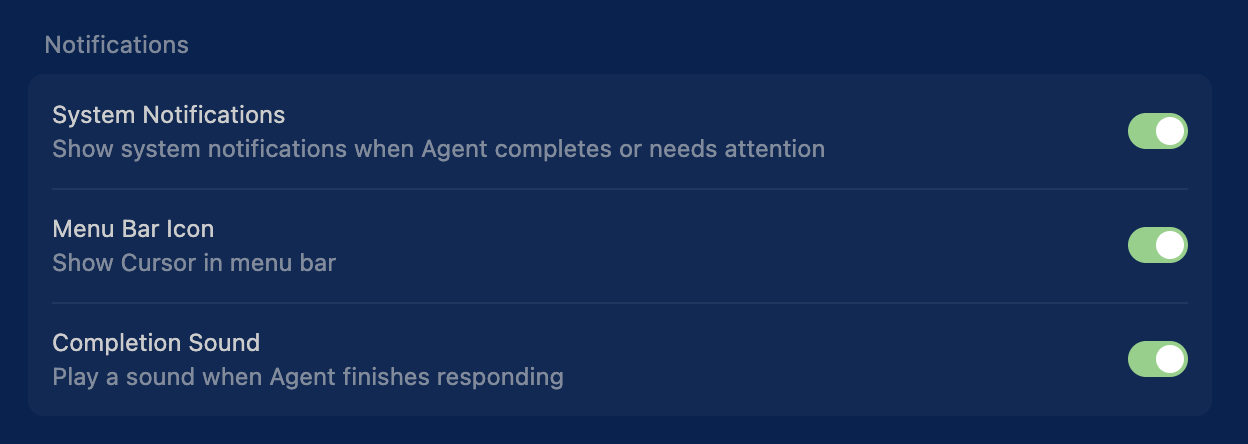
1. Completion Sounds
Audio notifications when an agent finishes a task.
2. System Notifications
macOS/Windows system notifications when agents need your attention or finish tasks. These appear in your system notification center, so you'll be alerted even if Cursor isn't your active window.
When running background agents or working across multiple chat sessions, notifications keep you aware of progress without constant context switching. System notifications are especially useful because you can work in other apps (browser, Figma, Slack) and still get alerted when the agent needs input or completes its work. You can focus on your current task and return to check the agent's work only when it's actually done.
📊 Keep Usage Summary Always Visible
The problem: You want to track your Cursor usage limits (requests, fast requests, premium requests) but have to dig into settings or open a browser to check your quota.
The solution: Enable usage summary to display your usage stats directly in the Cursor interface.
How to enable:
- Open Cursor Settings
- Search for "usage summary" or find it in the Display section
- Toggle "Show usage summary" on
Why this matters: When you're deep in a vibe coding session burning through requests, visible usage tracking helps you stay aware of your limits. You can see at a glance when you're approaching your quota and adjust accordingly—maybe switch to a cheaper model, batch tasks differently, or wait until your quota resets.
📋 Your Cursor Vibe Coding Checklist
Below is an interactive checklist to ensure you follow all the best practices when setting up your project in Cursor. You can copy and paste it in Notion or anywhere else with a nice formatting (it pastes as Markdown).
I hope you find this article helpful. I've put a lot of work into it.
This playbook tries to be as comprehensive as possible, and is still a work in progress.
If you have any feedback or want to discuss, reach out directly at julien@argil.io or on X (@JBerthom) - happy to talk.
Written with ❤️ by a human (still)